Navigating the world of PC gaming while balancing a busy life can be tough. For the average US gamer, often around 36 years old and juggling work, family, and personal time, keeping their rig in top shape is essential for those precious moments of relaxation and fun. This comprehensive guide on 'pc part check' offers practical, no-nonsense advice to ensure your gaming setup runs flawlessly. We understand the pain points: stuttering frame rates, mysterious crashes, or simply wondering if your machine is ready for the next big title. This resource is designed to help you proactively identify and resolve potential hardware issues, optimize performance without breaking the bank, and make informed upgrade decisions. Learn how to perform essential checks, troubleshoot common problems, and utilize smart tools to maintain your PC's longevity and peak performance, ultimately enhancing your gaming experience so you can enjoy every minute you dedicate to it.
What is the easiest way to check if my PC parts are working correctly?
The easiest way to check if your PC parts are working correctly is to observe system behavior and use basic monitoring software. Pay attention to boot times, system responsiveness, and any unusual noises or smells. For diagnostics, utilize Windows Task Manager for a quick overview of CPU, GPU, RAM, and disk usage, and a tool like HWMonitor to check component temperatures, ensuring no part is overheating during normal operation or gaming. Consistent performance without crashes indicates general health.
How do I know if my PC's graphics card (GPU) is failing during a PC part check?
You can identify a potentially failing graphics card during a PC part check by looking for specific symptoms. These include visual artifacts on your screen (like strange colors, lines, or checkerboard patterns), frequent game crashes back to desktop, severe frame rate drops in games you used to run smoothly, or the GPU fan making excessive noise or not spinning at all. Monitoring GPU temperatures with software like MSI Afterburner can also reveal if it's consistently running too hot, indicating a problem.
What are the common causes of PC part incompatibility during upgrades?
The most common causes of PC part incompatibility during upgrades revolve around the CPU socket, RAM generation, and physical size constraints. A new CPU must match your motherboard's socket (e.g., LGA1700, AM4) and chipset. RAM must be the correct DDR generation (e.g., DDR4, DDR5) for your motherboard. GPUs can sometimes be too long for your case, or require more power than your PSU can provide. Using online tools like PCPartPicker before buying helps prevent these headaches by flagging conflicts.
Can a PC part check help improve my game's frame rates?
Yes, a thorough PC part check can significantly help improve your game's frame rates. By identifying bottlenecks like an overheating CPU or GPU that's throttling performance, a full or nearly full SSD slowing down game loads, or outdated drivers, you can address these issues directly. Cleaning dust, updating drivers, optimizing fan curves, or simply freeing up disk space can all contribute to a smoother, higher frame rate gaming experience, ensuring your components work at their intended efficiency.
Which PC parts are most critical to check for optimal gaming performance?
For optimal gaming performance, the most critical PC parts to check are your Graphics Processing Unit (GPU), Central Processing Unit (CPU), and Random Access Memory (RAM). The GPU is paramount for rendering visuals, the CPU handles game logic and physics, and sufficient RAM ensures smooth multitasking and quick asset loading. Monitoring their temperatures, utilization, and ensuring their drivers are up-to-date will have the biggest impact on your gaming experience, preventing common bottlenecks and improving stability.
How can I check my PC's power supply unit (PSU) health without special tools?
Checking your PC's power supply unit (PSU) health without special tools primarily involves observing system behavior. Look for intermittent shutdowns, random reboots, system instability under load (like during gaming), or unusual buzzing/whining noises from the PSU itself. These are strong indicators of a failing or insufficient PSU. While dedicated tools offer precise voltage readings, these behavioral symptoms can give a good initial assessment of whether your PSU might be struggling to deliver stable power to your components.
What is the role of an SSD in a PC part check for gaming, and how do I check its health?
The role of an SSD in a PC part check for gaming is crucial for fast game loading times, quick boot-ups, and overall system responsiveness. To check its health, you should use dedicated software like CrystalDiskInfo. This tool reads the SSD's S.M.A.R.T. (Self-Monitoring, Analysis, and Reporting Technology) data, providing critical information such as drive temperature, total host reads/writes, and overall health status (e.g., 'Good', 'Caution', 'Bad'). Keeping at least 15-20% free space on your SSD is also vital for maintaining optimal performance.
Hey fellow gamers! If you're anything like me, your gaming PC isn't just a machine; it's your portal to adventure, your social hub, and your escape after a long day. But let's be real, nothing sours that experience faster than unexpected lag, crashes, or wondering if your rig is truly performing its best. For the millions of US gamers, 87 percent of whom play regularly and often log 10 or more hours a week, balancing that passion with work and family life means every gaming session counts. We value relaxation, fun, and getting the most out of our hard-earned gear, not troubleshooting. That's why a proactive 'pc part check' isn't just for tech gurus; it's a game-changer for every player. This guide is your friendly co-op partner, helping you understand, diagnose, and optimize your gaming PC so you can spend less time fixing and more time playing. We'll cut through the hype and get straight to the practical solutions, ensuring your setup is always ready for action, whether you're diving into a social cozy game or pushing frames in the latest competitive title.
You don't need to be a hardware wizard to keep your PC in top condition. With a few simple checks and the right approach, you can significantly improve your system's stability, extend its lifespan, and ensure you're getting the best bang for your buck. From visual inspections to software diagnostics and smart upgrade strategies, we've got you covered. Let's make sure your PC is performing just as hard as you do.
Why is a regular PC part check crucial for every gamer?
A regular PC part check is vital because it's your frontline defense against performance degradation and unexpected hardware failures. Think of it like a routine oil change for your car; you do it to prevent bigger, more expensive problems down the road. For gamers, this translates to consistent frame rates, smoother gameplay, and avoiding the frustration of system crashes during critical moments. Early detection of issues like overheating components, failing storage drives, or outdated drivers can save you significant time and money, ensuring your valuable gaming time is spent enjoying, not troubleshooting. It also helps you stay current without falling for every new hardware hype cycle, allowing you to optimize what you already have.
What are the essential steps for a basic visual PC part check?
Performing a basic visual PC part check is surprisingly effective and doesn't require any special tools beyond perhaps a flashlight. First, power down and unplug your PC. Open your case and start by inspecting for dust buildup on fans, heatsinks (especially your CPU cooler and GPU), and ventilation grilles. Excessive dust acts like an insulating blanket, trapping heat and hindering airflow. Next, check all cable connections; ensure your GPU's power cables, motherboard power, SATA cables to drives, and fan headers are securely seated. Look for any bulging capacitors on your motherboard or GPU, which indicate component failure. Finally, observe fan operation during startup to confirm all fans are spinning freely and quietly. These simple checks can often pinpoint obvious problems before they escalate.
Which software tools are best for monitoring PC part health and performance?
For a deeper dive into your PC's health, several software tools are invaluable for monitoring temperatures, usage, and identifying potential issues. Here are some top recommendations:
- HWMonitor/HWInfo64: These tools provide comprehensive real-time data on CPU temperatures, GPU temperatures, fan speeds, voltage, and power consumption for almost every component in your system. They are essential for spotting overheating or unusual power draws.
- MSI Afterburner: Primarily known for GPU overclocking, it also offers excellent real-time monitoring overlays during gaming, displaying GPU usage, temperature, and frame rates.
- CrystalDiskInfo: This utility reports the health status of your Solid State Drives (SSDs) and Hard Disk Drives (HDDs) using S.M.A.R.T. data, predicting potential drive failures before they happen.
- CPU-Z/GPU-Z: These lightweight tools provide detailed information about your CPU and GPU specifications, helping you verify that your hardware is correctly recognized and running at expected speeds.
- Windows Task Manager/Resource Monitor: Often overlooked, these built-in Windows tools offer quick insights into CPU, RAM, disk, and network usage, which can help identify software or background processes hogging resources.
Using a combination of these can give you a complete picture of your PC's operational health.
How can I verify PC part compatibility for future upgrades?
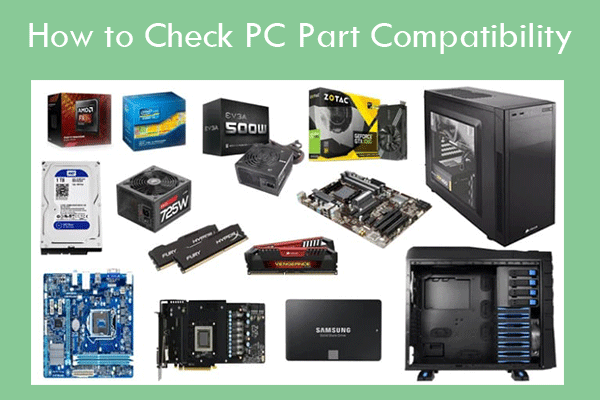
Verifying PC part compatibility is paramount when planning an upgrade to avoid costly mistakes and frustrating installation issues. The primary components to consider are your CPU, motherboard, RAM, and GPU. For CPUs, check the **socket type** (e.g., AM4, LGA1700) on your motherboard; a new CPU must match this. For RAM, ensure it's the correct **DDR generation** (e.g., DDR4, DDR5) and that your motherboard supports the desired speed and capacity. GPUs primarily need a **PCIe x16 slot** and sufficient **power supply unit (PSU) wattage**. Websites like PCPartPicker.com are incredibly useful, allowing you to build a virtual system and automatically flag compatibility issues. Always consult your motherboard's manual for maximum RAM speed, CPU support list, and M.2 slot compatibility. Double-checking dimensions for your case is also crucial, especially for larger GPUs or CPU coolers, to prevent physical fitment problems.
My PC is slowing down; how do I troubleshoot performance issues with part checks?
If your PC feels sluggish, a systematic approach to PC part checks can pinpoint the culprit. Start by monitoring your CPU, GPU, and RAM usage and temperatures using tools like HWMonitor or Task Manager during gameplay or demanding tasks. High CPU or GPU temperatures often lead to thermal throttling, where components intentionally slow down to prevent damage. An SSD nearing full capacity can also degrade performance; ensure you have at least 15-20% free space. Run a malware scan, as malicious software can consume significant resources. Check your RAM usage; if it's consistently near 100%, you might need more. Outdated or corrupted drivers, especially for your GPU, are a common cause of performance drops, so ensure they are up to date. Finally, inspect your power supply; an aging or insufficient PSU can lead to unstable power delivery, affecting component performance. Systematically ruling out these common issues will help you isolate the problem.
How do I effectively manage CPU and GPU temperatures during intense gaming?
Effectively managing CPU and GPU temperatures is crucial for maintaining performance and extending hardware lifespan, especially when playing demanding titles for 10+ hours a week. First, ensure your PC's airflow is optimized. This means having a good balance of intake and exhaust fans, and making sure internal cables aren't blocking pathways. Regularly clean dust from your fans and heatsinks; compressed air is your best friend here. Consider upgrading your CPU cooler if you're still using a stock cooler, especially for high-end processors. For GPUs, monitor temperatures with tools like MSI Afterburner and consider adjusting fan curves to be more aggressive if temps frequently exceed 80 degrees Celsius. In some cases, reapplying thermal paste to your CPU or even GPU (if you're comfortable) can significantly improve heat transfer. Adequate case ventilation is paramount; investing in a case with good airflow can make a world of difference.
When should I update my PC part drivers and firmware?
Updating your PC part drivers and firmware is a continuous process that should be performed regularly but strategically. For your GPU, always keep drivers updated, as new versions often bring significant performance improvements, bug fixes, and optimization for the latest games. Nvidia, AMD, and Intel typically release new GPU drivers monthly or with major game launches. For your motherboard's chipset drivers, update them when new versions are released, as they can improve system stability and performance. SSD firmware updates are less frequent but can offer performance boosts or critical bug fixes; always back up your data before a firmware update. Peripherals like mice and keyboards often have their own drivers or software that can enhance functionality. Generally, update drivers when you notice performance issues, install a new game, or when a major update is announced. Avoid blindly updating every driver constantly; prioritize GPU, chipset, and critical peripheral drivers.
What are budget-friendly strategies for PC part upgrades?
Upgrading your PC on a budget is absolutely doable for busy gamers who want value without breaking the bank. Instead of overhauling your entire system, focus on components that offer the most significant performance per dollar. Often, the best budget upgrade is adding an **SSD** if you're still on an HDD, or upgrading to a larger/faster SSD. This dramatically improves load times and overall system responsiveness. Next, consider increasing your **RAM** to 16GB or 32GB, especially if you multitask or play memory-intensive games; this is usually a relatively inexpensive boost. For GPUs, look for previous-generation cards on the used market or during sales, as they often offer excellent performance for less. Sometimes, a simply more efficient **CPU cooler** can allow your current CPU to boost higher for longer, providing a free performance uplift. Remember to check for good deals during sales events like Black Friday or Amazon Prime Day, which are perfect for snagging parts on a budget. And always ensure compatibility before purchasing!
How can I maintain my gaming PC for longevity and consistent performance?
Maintaining your gaming PC for longevity and consistent performance goes beyond just occasional cleaning; it involves proactive habits. Regular internal cleaning (dust removal from fans, heatsinks, and filters) every 3-6 months is crucial for thermal management. Organize your cables inside the case to ensure unobstructed airflow. Keep your operating system clean by uninstalling unused programs and regularly defragmenting HDDs (though not SSDs). A crucial aspect is managing your software: keep drivers updated, especially for your GPU, but don't overdo it with unnecessary bloatware. Monitor component temperatures regularly; sustained high temperatures are a silent killer of hardware. Invest in a good quality power supply; it protects all your components. Finally, avoid extreme overclocking unless you truly understand the risks, as it can reduce component lifespan. By following these steps, you can ensure your PC remains a reliable gaming companion for years, allowing you to maximize your enjoyment without constant worries.
What's the role of my PSU in overall PC part health?
Your Power Supply Unit (PSU) is often overlooked but plays a critical role in the overall health and stability of all your PC parts. It's the heart of your system, delivering stable and consistent power to every component, from your CPU and GPU to your storage drives and fans. An underpowered or failing PSU can lead to a multitude of issues, including system crashes, random reboots, component instability, and even permanent damage to sensitive hardware. When performing a 'pc part check', ensure your PSU has adequate wattage for your current components and any planned upgrades. Higher-quality PSUs often come with better efficiency ratings (e.g., 80 Plus Gold, Platinum), which means they waste less energy as heat and provide cleaner power. Don't skimp on your PSU; it's a foundational component that protects your entire investment and ensures consistent, reliable performance for all your gaming sessions.
Conclusion
Keeping your gaming PC in top shape doesn't have to be a chore. By integrating these simple 'pc part check' routines and understanding how your components work together, you're not just preventing problems; you're reclaiming your precious gaming time and enhancing every session. For the busy gamer who values those moments of escape and challenge, a healthy PC means more fun, less frustration, and the confidence that your rig is always ready for the next adventure. Remember, a little proactive maintenance goes a long way in extending the life of your expensive hardware and ensuring peak performance without constantly chasing the latest upgrades. What's your biggest PC gaming challenge or your best tip for keeping your rig running smoothly? Comment below and share your wisdom with the community!
FAQ Section
Q: How often should I perform a full PC part check?
A: A full PC part check, including visual inspection and software diagnostics, is recommended every 3-6 months. Regular driver updates (especially GPU) should be done as new versions release, typically monthly or with major game releases.Q: Can dusty PC parts really affect gaming performance?
A: Absolutely. Dust buildup acts as an insulator, trapping heat and preventing proper cooling. This leads to higher component temperatures, which can cause thermal throttling and significant reductions in gaming performance and system stability.Q: Is it safe to clean my PC parts myself?
A: Yes, with caution. Always power down and unplug your PC first. Use compressed air in short bursts, holding fans to prevent over-spinning. Avoid vacuum cleaners near sensitive electronics. For deeper cleaning, consult specific component guides.Q: What are the first signs of a failing PC part?
A: Common signs include unexpected crashes, blue screens of death (BSODs), graphical artifacts, extreme slowdowns, unusual noises (grinding from HDDs or loud fans), and significantly higher-than-normal temperatures reported by monitoring software.Q: Should I worry about my CPU or GPU hitting 80-90 degrees Celsius during gaming?
A: While modern CPUs and GPUs can handle temperatures up to 90-95 degrees Celsius, consistently running at 80-90 degrees C during normal gaming indicates suboptimal cooling. Aim for consistent temperatures below 80 degrees C for better longevity and performance. Addressing airflow or cooling is recommended.Q: Where can I find reliable information on my specific PC parts for troubleshooting?
A: Always start with the manufacturer's official website for your motherboard, CPU, and GPU. They provide manuals, driver downloads, and support forums. Reputable tech review sites and community forums (like Reddit's PC building subreddits) are also excellent resources.Regular PC part checks ensure peak gaming performance, identify compatibility issues for seamless upgrades, prevent costly hardware failures, and troubleshoot system bottlenecks, saving time and money for busy gamers.
35

Don T Kill Your PC Avoid These PC Parts In 2026 YouTube . How To Check PC Part Guide And Tools MiniTool Pc Part Thumbnail . How To Choose PC Parts In 2026 Guide Build Smart How To Choose The Right PC Parts For Your First Build 2025 Guide . Computer Repair NYC In 2026 Why Right To Repair Laws Mean Faster S9vyUyX9R7 .webp. PC Project 2026 Where To Start With Building Your Own Gaming PC CCL CCL 667 BLOG BUILD GUIDE 1980x1080


Awesome All In Ones Potent Components The Top Desktops And PC Parts. How To Pick The Right PC Parts In 2025 Part Selection Explained . How Does Part List Look Am I Missing Anything Did I Pick Parts Like A . How To Pick The Best PC Parts In 2024 PC Part Choices Explained . Parts Check R PcBuild Parts Check V0


How Is This Parts List Any R PcBuild . ASRock Brings Powerful And Exciting PC Upgrades To CES 2026 EnosTech Com ASRock At CES 2026 . Simple 2025 PC Parts Guide YouTube . How To Build A Future Proof PC In 2026 Without Regret Gemini Generated Ima. Imresizer 98 . Should You Build A PC In 2026 Mid Range Gaming Build Guide January Cld Sample


Fellow PCMRers I Created A Checklist For Choosing Parts For Your Next . Last Minute Check R PcBuild . How To Build A PC In 2026 GEEKOM UK Pc Building Guide.webp. 6 Best Desktop Computers 2026 YouTube . Don T Waste Money On A New PC In 2026 CyberGhost VPN Nz HhRSd51o VJiOkUOe MaWcSreS

Pick Parts Build Your PC India How To Check Of PC Parts.webp. In Review PC Parts List Any Comments Or Suggestions R PcBuild In Review Pc Parts List Any Comments Or Suggestions V0 . How To Choose The Right Gaming PC In 2026 Complete Guide Complete Guide . How To Know If All Your PC Parts Are Compatible 4 Fast Options How To Know If All Your PC Parts Are Compatible Twitter . 2026 100 NEW GAMING PC PACKAGE CUTOMIZE CUSTOM PC HIGH PERFORMANCE My 11134208 820li



What Is An AI PC In 2026 AI Laptop Meaning Buying Guide Innova Retail What Is An AI PC In 2026 And Do You Really Need One . The 2026 Indian PC Buyer Best Roadmap What To Buy Skip Wait Best Pc Buying Guide 1200x675 . 10 Games From The February 2026 Steam Next Fest You Should Check Out SNF Feb 26 Feature 2048x1024 . How To Pick PC Parts That Fit And Perform Build Checklist Final Review 1024x559 . JEE Main 2026 Jan 23 Shift 2 Exam Starts At 3 PM Check Key Updates Jee Main 2026 Jan 23 Shift 2 Exam Starts At 3 Pm Check Key Updates 7927 Og


Help A Gamer Please And Say If These Parts Fit For This Pc What Should Help A Gamer Please And Say If These Parts Fit For This Pc V0 . Can You Guys Check This Parts Are Ok Or Not R PcBuild Can You Guys Check This Parts Are Ok Or Not V0 . First PC Build Parts Check R Buildapc . Why Desktop PC Prices Are Rising In 2026 And How To Still Get A Good Deal New Year Desktop PC Deals 2026 Main . Upgrading My PC And Want Some Input On My New Parts List R PcBuild Upgrading My Pc And Want Some Input On My New Parts List V0