Unlocking the full creative potential within Roblox often starts with personalization. For many gamers who juggle work and family, the desire to express themselves and enhance their virtual worlds is paramount. This comprehensive guide delves into custom image IDs in Roblox, a powerful feature that allows creators to bring unique textures, decals, and art into their games. Whether you are building an intricate obstacle course, designing custom apparel for your avatar, or simply want to add a personalized touch to your virtual home, mastering custom image IDs is essential. We will navigate the entire process from uploading your own images to understanding Roblox's moderation policies and effectively integrating these assets into your projects. Discover how to troubleshoot common issues and leverage this tool to make your creations stand out in the bustling Roblox universe, optimizing your valuable gaming time for maximum impact and enjoyment. Stay current with trends and level up your game development skills without unnecessary hype.
What is a Custom Image ID in Roblox used for?
A Custom Image ID in Roblox is a unique numerical code assigned to an image file you've uploaded to the platform. It's used to reference and apply that image as a texture, decal, or UI element within your Roblox games and experiences, allowing for personalized visual content.
How do I upload an image to Roblox to get an ID?
To upload an image, log into your Roblox account, navigate to the 'Create' page, select 'Decals' or 'Images', click 'Choose File', upload your image, and wait for moderation. Once approved, click on the asset to find its ID in the browser's URL.
Can I use copyrighted images as Custom Image IDs on Roblox?
No, you should not use copyrighted images as Custom Image IDs on Roblox without explicit permission from the rights holder. Roblox has strict moderation rules against copyright infringement, and doing so can lead to your asset being removed and potential account penalties.
What happens if my custom image gets rejected by Roblox moderation?
If your custom image is rejected by Roblox moderation, it will not be assigned an ID and cannot be used in your games. You will usually receive a notification explaining the reason for rejection, allowing you to modify and re-upload an compliant version.
Are Custom Image IDs free to use in Roblox Studio?
Yes, once an image is uploaded and approved, its Custom Image ID is free to use within Roblox Studio for applying to parts, GUIs, and other game assets. There are no additional Robux charges for using an already uploaded image ID.
Can I make my Custom Image ID private so others can't use it?
When you upload an image to Roblox, it is generally considered a public asset unless specifically marked otherwise (e.g., specific game assets linked to a group). While others can find your image IDs, they cannot edit or re-upload your asset. For exclusive use, ensure it's integral to your private game.
Why is my Custom Image ID not showing up in my Roblox game?
If your Custom Image ID isn't showing, check if the ID is correct, the image was approved by moderation, its property (Texture, Image) is correctly set in Studio, and the image aspect ratio isn't distorted. Ensure your internet connection is stable, as assets need to load.
Hey fellow gamers! Ever found yourself wanting to make your Roblox creations truly your own, adding that perfect touch that makes your game world instantly recognizable or just a bit more visually appealing? We've all been there. Juggling a demanding job, family responsibilities, and still finding time to unwind with our favorite games can be tough. When you finally sit down to create, you want to make the most of that precious time, right? That often means avoiding frustrating technical hiccups and getting straight to the fun part of building. One of the most common ways to inject personality into your Roblox experience is through custom image IDs Roblox. These unique identifiers are your golden ticket to using your own images as textures, decals, and more within your games, turning your vision into a vibrant reality without unnecessary hurdles.
For the average gamer, often around 36 years old, who finds gaming a vital stress-reliever and a social hub, personalization isn't just a luxury; it's part of the fun. With an estimated 87% of US gamers regularly engaging with their favorite titles and dedicating upwards of 10+ hours a week, optimizing that experience is key. Whether it’s connecting with friends in a personalized hangout spot or building a competitive obby with unique visual flair, custom content drives engagement. This guide is built to cut through the noise, offering practical, no-nonsense advice so you can master custom image IDs, enhance your game's performance, and truly enjoy your creative process on Roblox, making every minute count.
What Exactly is a Custom Image ID in Roblox?
A custom image ID Roblox is a unique numerical identifier that Roblox assigns to an image asset once it has been uploaded to the platform. Think of it like a digital fingerprint for your uploaded picture. This ID allows you to reference and display that specific image within any of your Roblox games or experiences. Instead of needing to re-upload the same image every time you want to use it, you simply input its ID. These IDs are crucial for applying custom textures to parts, creating decals on surfaces, personalizing GUIs (Graphical User Interfaces), and even adding custom elements to avatar accessories or clothing within experiences that support user-generated content.
Using these IDs streamlines your development workflow significantly. Once an image is approved and has an ID, it's ready for immediate use across all your projects. This saves valuable time, especially for busy adult gamers who need efficient tools to maximize their creative output in limited gaming windows. It's a foundational concept for anyone looking to move beyond Roblox's default assets and bring their unique artistic vision to life.
Why are Custom Image IDs Crucial for Your Roblox Creations?
Custom image IDs are fundamental because they empower creators with unparalleled creative control and personalization options. They allow you to break free from the standard library of Roblox textures and decals, enabling you to implement your own brand, aesthetic, or unique visual themes directly into your games. This level of customization is vital for distinguishing your game in the crowded Roblox marketplace. In today's highly social gaming landscape, where mobile gaming dominates and players are constantly seeking new, engaging experiences, unique visuals are a powerful draw.
From a player perspective, encountering custom artwork makes an experience feel more polished, immersive, and unique. For creators, it's about building a distinct identity. Whether you're making a cozy game for friends to relax in or a competitive arena, custom images can set the mood, convey information, or simply make things look better. They are also incredibly useful for creating consistent branding across multiple assets in your game, ensuring a cohesive and professional appearance. This month's trends continue to highlight the importance of unique user-generated content, making custom image IDs more relevant than ever for creators aiming for impactful and memorable experiences.
How Do You Upload a Custom Image to Roblox and Get Its ID?
Uploading a custom image to Roblox and obtaining its ID is a straightforward process, though it involves a few steps to ensure compliance and proper integration. Here’s a simple guide:
Prepare Your Image: Before uploading, ensure your image meets Roblox's specifications. It should typically be in a common format like PNG or JPG. Keep file sizes reasonable for optimal game performance, which is a major concern for gamers who value smooth experiences. Roblox also has resolution limits, so check their latest guidelines.
Navigate to the Create Page: Log into your Roblox account and go to the 'Create' section. This is your hub for all asset management.
Select 'Decals' or 'Images': Depending on how you intend to use the image, you'll typically upload it as a 'Decal' or 'Image'. Decals are often 2D images applied to surfaces, while 'Images' can be used more broadly for textures or GUI elements. Click 'Decals' from the left-hand menu.
Upload Your Image: Click the 'Choose File' button, select your image from your computer, give it a descriptive name (this helps with organization later), and then click 'Upload'.
Wait for Moderation: Your image will now enter a moderation queue. Roblox reviews all user-uploaded content to ensure it complies with their Community Standards. This process can take anywhere from a few minutes to a few hours, or even longer during peak times. Patience is key here; it's a necessary step to maintain a safe and friendly environment on the platform, which is something all responsible gamers appreciate.
Retrieve the ID: Once your image is approved, it will appear in your 'Decals' list. Click on the image thumbnail. The URL in your browser's address bar will contain the unique ID. For example, in a URL like
https://www.roblox.com/library/123456789/YourImageName, the number '123456789' is your custom image ID Roblox. Copy this number.
Now you have your ID, ready to be used in Roblox Studio! This simple workflow ensures that even busy adult gamers can quickly integrate their personalized content, making their creative sessions more productive and enjoyable.
What Are the Rules and Moderation Guidelines for Roblox Images?
Roblox has strict moderation guidelines to ensure a safe, fun, and inclusive environment for its diverse user base. Understanding these rules is absolutely critical to avoid having your assets rejected or, worse, facing account penalties. For many gamers, maintaining a good standing on a platform like Roblox is important for social play and community engagement. Here are the key rules:
No Inappropriate Content: This is paramount. Images must not contain nudity, gore, hate speech, explicit content, or anything sexually suggestive. Roblox employs advanced moderation tools and human review to enforce this vigorously.
No Personal Information: Do not upload images containing real-world personal information, such as phone numbers, addresses, or full names. This protects privacy and prevents scams.
No Copyright Infringement: You must own the rights to the images you upload or have explicit permission to use them. Using copyrighted characters, logos, or artwork without permission can lead to removal of your asset and potential account action. Always respect intellectual property.
No Discrimination or Harassment: Images promoting discrimination, harassment, or bullying based on race, gender, religion, sexual orientation, etc., are strictly forbidden.
No Dangerous or Illegal Content: Anything depicting or promoting illegal activities, self-harm, or dangerous behavior is prohibited.
Keep it Safe for All Ages: Roblox caters to a wide age range, so all content must be appropriate for younger audiences as well. If you're unsure, err on the side of caution.
Adhering to these guidelines not only ensures your assets get approved quickly but also contributes to a positive community experience, something over 60% of US gamers value deeply in their online interactions. Always review Roblox's official Community Standards for the most up-to-date information.
How Can You Use Custom Image IDs Effectively in Your Roblox Games?
Once you have your custom image ID Roblox, the possibilities for enhancing your game are extensive. Here's how you can leverage them effectively:
Textures for Parts: The most common use is applying textures to parts. In Roblox Studio, select a part, go to its 'Properties' window, find the 'Texture' property, and paste your image ID there. This instantly changes the visual surface of the part, allowing for realistic materials like wood, brick, metal, or unique stylized patterns.
Decals on Surfaces: Similar to textures, but decals are typically 2D images overlaid on a surface without affecting the material properties. Use decals for signs, posters, paintings, or intricate details on walls and floors. Insert a 'Decal' object into a part and set its 'Texture' property to your ID.
GUI Elements: For custom user interfaces (GUIs), image IDs are indispensable. You can use them for custom buttons, icons, backgrounds, loading screens, and health bars. Insert an 'ImageLabel' or 'ImageButton' into a 'ScreenGui' or 'SurfaceGui' and set its 'Image' property to your ID. This is crucial for creating professional-looking interfaces that guide players seamlessly through your game.
Skyboxes and Environmental Effects: Advanced creators can use custom image IDs for skyboxes, creating immersive outdoor environments. While more complex, this can dramatically change the feel of your game world.
Animated Textures (Spritesheets): For dynamic visuals, you can create a spritesheet (multiple frames of animation on a single image) and use scripting to cycle through different sections of the image, simulating animation. This can bring life to characters, special effects, or UI elements.
Effective use of custom image IDs directly translates to a more engaging and visually rich game, enhancing player immersion and making your game stand out. For gamers looking to build skills and create value, mastering these applications is a significant step.
Are There Common Pitfalls to Avoid When Using Roblox Image IDs?
While using custom image IDs Roblox is powerful, there are several common pitfalls that even experienced creators can stumble into. Avoiding these will save you time, reduce frustration, and improve your game's overall quality and performance:
Moderation Rejection: The most frequent issue. Always double-check your images against Roblox's Community Standards before uploading. Content that is too vague, has text that could be misinterpreted, or is borderline inappropriate is likely to be rejected. A quick review can prevent hours of waiting and re-uploading.
Image Quality and Resolution: Uploading low-resolution images can result in pixelated or blurry textures in your game, making it look unprofessional. Conversely, excessively high-resolution images can negatively impact game performance, especially for players on lower-end devices or mobile, which is a significant portion of the Roblox user base. Aim for a balanced resolution that looks good without being overly demanding.
Incorrect Aspect Ratios: If your image's aspect ratio (width to height) doesn't match the dimensions of the surface it's applied to, it can appear stretched or squashed. Pay attention to how your textures are tiling or fitting to avoid visual distortions.
Forgetting to Copy the ID: A simple but common mistake. Always copy the full numerical ID, not just the URL or an incorrect portion of it. An invalid ID will simply not display your image.
Overuse or Inconsistent Style: While personalization is good, using too many different styles of custom images can make your game look cluttered or inconsistent. Strive for a cohesive art style. Overusing complex textures can also lead to performance drops, a major pain point for players.
Not Considering Mobile Performance: With mobile gaming being dominant, always test your game on various devices. Large numbers of complex custom textures can strain mobile hardware, leading to lag or crashes. Optimize image sizes and usage for a smooth experience across platforms.
Being mindful of these potential issues allows you to create more robust, visually appealing, and player-friendly Roblox experiences. It's about optimizing performance and value for money, even if that value is just the player's time and enjoyment.
What Alternatives Exist if You Can't Use a Custom Image ID?
Sometimes, using a custom image ID Roblox might not be feasible, whether due to moderation issues, lack of personal assets, or simply seeking a different aesthetic. Fortunately, Roblox offers robust alternatives that can still help you personalize your creations:
Roblox's Built-in Material Service: Roblox Studio has an extensive library of pre-made materials like plastic, metal, wood, glass, forcefield, and many more. These are highly optimized for performance and offer a wide range of visual styles. The new MaterialService also allows for even greater customization and mixing of existing materials, providing stunning visual fidelity without any uploads.
Roblox's Decal Library: Beyond your own uploads, Roblox has a vast public library of decals uploaded by other users. You can search for specific themes, patterns, or images directly within Studio. Always preview and check these assets for quality and appropriateness before using them.
Color and Transparency: Don't underestimate the power of simple color and transparency settings. By expertly combining different colors, gradients, and transparency levels on parts, you can achieve sophisticated visual effects. This is a budget-friendly and performance-friendly way to add flair.
Part Manipulation and Meshes: Instead of relying solely on 2D images, you can create intricate shapes and designs using Roblox parts or custom meshes. Combining different shapes, sizes, and orientations of parts can form complex 3D visuals. This is particularly effective for architectural details or stylized props.
Particle Emitters and Beams: For dynamic visual effects, consider using particle emitters for smoke, fire, sparks, or magical effects, and beams for laser effects or glowing connections. These can add a lot of visual interest and atmosphere without needing image IDs.
These alternatives ensure that even without custom image uploads, you have plenty of tools at your disposal to create compelling and unique Roblox experiences. It's all about skill-building and creativity within the platform's robust framework.
How Do Custom Image IDs Enhance the Social Gaming Experience?
Custom image IDs play a significant, often understated, role in enriching the social gaming experience on Roblox. In a world where 87% of gamers prioritize connecting with friends, and platforms like Discord thrive on shared experiences, personalization fosters stronger social bonds:
Personalized Hangout Spots: Imagine creating a virtual clubhouse or a chill cafe where every poster, every sign, and even the texture of the furniture uses custom images that resonate with your friend group's inside jokes, favorite memes, or shared aesthetics. This makes the space feel truly 'yours' and enhances the feeling of community.
Unique Game Identities: For games designed for social play, like role-playing games or interactive stories, custom images can define distinct factions, character classes, or environmental themes. Players feel a stronger connection to their chosen identity when it's visually represented through unique emblems, uniforms, or banners designed with custom image IDs.
Creator Recognition and Branding: If you're building a community around your creations, custom logos, watermarks, or branding applied via image IDs help players instantly recognize your work. This creates a sense of loyalty and makes your games more discoverable, encouraging social sharing and word-of-mouth promotion.
Event Customization: For in-game events or seasonal celebrations, custom images can quickly transform a space with event-specific decorations, banners, or challenges. This keeps the environment fresh and exciting, encouraging players to return and socialize during these limited-time experiences.
Role-Playing Immersion: In role-playing games, custom images can be used for detailed shop signs, wanted posters, item icons, or character portraits, significantly deepening the immersion. Players connect more strongly with characters and worlds that feel fully realized, driving more engaging social interactions and narratives.
Ultimately, custom image IDs enable creators to build more personal, memorable, and visually distinct environments that encourage interaction, shared stories, and a stronger sense of belonging among players. This directly feeds into the desire for social connection and stress relief that many adult gamers seek.
Where Can You Find Pre-Existing Roblox Image IDs for Inspiration?
Sometimes you need inspiration, or a placeholder, or just want to see how others use custom assets. While creating your own custom image ID Roblox is empowering, the platform also offers ways to find and use existing IDs, often referred to as 'free models' or 'public assets' for textures and decals. Here’s how you can explore:
Roblox Creator Marketplace: This is your primary hub. In Roblox Studio, open the 'Toolbox' window (View > Toolbox). Here, you can switch to the 'Images' or 'Decals' tab. Search for keywords like 'texture,' 'brick,' 'wood,' 'sky,' 'icon,' or specific themes. When you click on an asset, its ID is usually visible in its properties, or you can insert it into your game to inspect its properties and find the ID. Be aware that public assets might not always be high quality, and some might be copyrighted, so use with caution and always verify suitability.
Game Exploration: Play popular Roblox games! If you see a texture or decal you like, you can often find its ID by using Roblox Studio's 'Game Explorer' or 'Explorer' pane. Load a game into Studio (if the creator allows copying), navigate through the workspace, and inspect parts. Their 'Texture' or 'Decal.Texture' properties will often reveal the image ID.
Roblox Library Website: On the main Roblox website, navigate to the 'Create' section and then to 'Library'. Filter by 'Decals' or 'Images'. You can browse trending or popular assets. Clicking on any asset will take you to its page, where the ID is part of the URL.
Developer Forums and Communities: Roblox developer forums, Discord servers, and fan communities are great places to ask for specific IDs, share resources, or get inspiration. Experienced developers often share lists of useful IDs or tips on finding them. This taps into the social aspect of gaming and community collaboration.
Utilizing these resources can jumpstart your creativity, provide placeholders while you design your own assets, or simply offer learning opportunities. Always remember to check licenses if you plan to use publicly available assets in your own monetized games to ensure you're respecting creators' work.
Conclusion
Mastering custom image IDs Roblox is a game-changer for anyone serious about creating engaging and unique experiences on the platform. For the busy adult gamer, this skill empowers you to transform your creative vision into reality efficiently, ensuring your valuable gaming time is spent on fun and impactful building, not frustrating technicalities. From personalizing your virtual spaces to optimizing performance for a broad audience, understanding image IDs is a fundamental step in elevating your Roblox development journey. By adhering to moderation guidelines and exploring creative applications, you can craft worlds that truly stand out and foster richer social interactions.
What's your biggest challenge when it comes to custom assets in Roblox? Share your thoughts and tips in the comments below! We're all here to help each other level up our gaming and creating skills.
FAQ Section
What image file types does Roblox support for custom uploads?
Roblox primarily supports common image formats like PNG, JPG, and GIF. For best results and transparency, PNG is often recommended. Ensure your files are optimized for web use to keep sizes small and load times fast.
Is it free to upload custom images to Roblox?
Yes, uploading custom images to Roblox is generally free for all users. However, creating specific types of assets like shirts or pants for avatars (which use custom images as textures) might require a small Robux fee for upload, but raw image decals are free.
How long does Roblox image moderation usually take?
Roblox image moderation typically takes anywhere from a few minutes to several hours, depending on current volume and complexity. Sometimes, it can be almost instantaneous, while other times it may take longer. Patience is essential.
Can I use custom images for Roblox clothing?
Yes, custom images are essential for creating unique Roblox clothing like shirts, pants, and t-shirts. You upload your designs (often as templates) as image assets, then use their IDs to apply them to clothing items. This allows for vast avatar personalization.
What is the maximum resolution for Roblox images?
While Roblox doesn't state a hard maximum in all cases, images larger than 1024x1024 pixels are often downscaled. It's generally recommended to keep images at or below this resolution for optimal performance and consistent display across devices, especially for mobile users.
Why was my Roblox custom image rejected by moderation?
Your custom image was likely rejected because it violated Roblox's Community Standards. Common reasons include inappropriate content, copyrighted material, personal information, or content deemed unsafe or disturbing. Always review the guidelines thoroughly before uploading.
Upload custom images to Roblox, obtain unique image IDs, apply textures and decals in games, understand Roblox moderation rules, enhance game personalization, troubleshoot common image ID issues, best practices for asset creation, leverage custom content for social gaming, find and use pre-existing Roblox image IDs.
35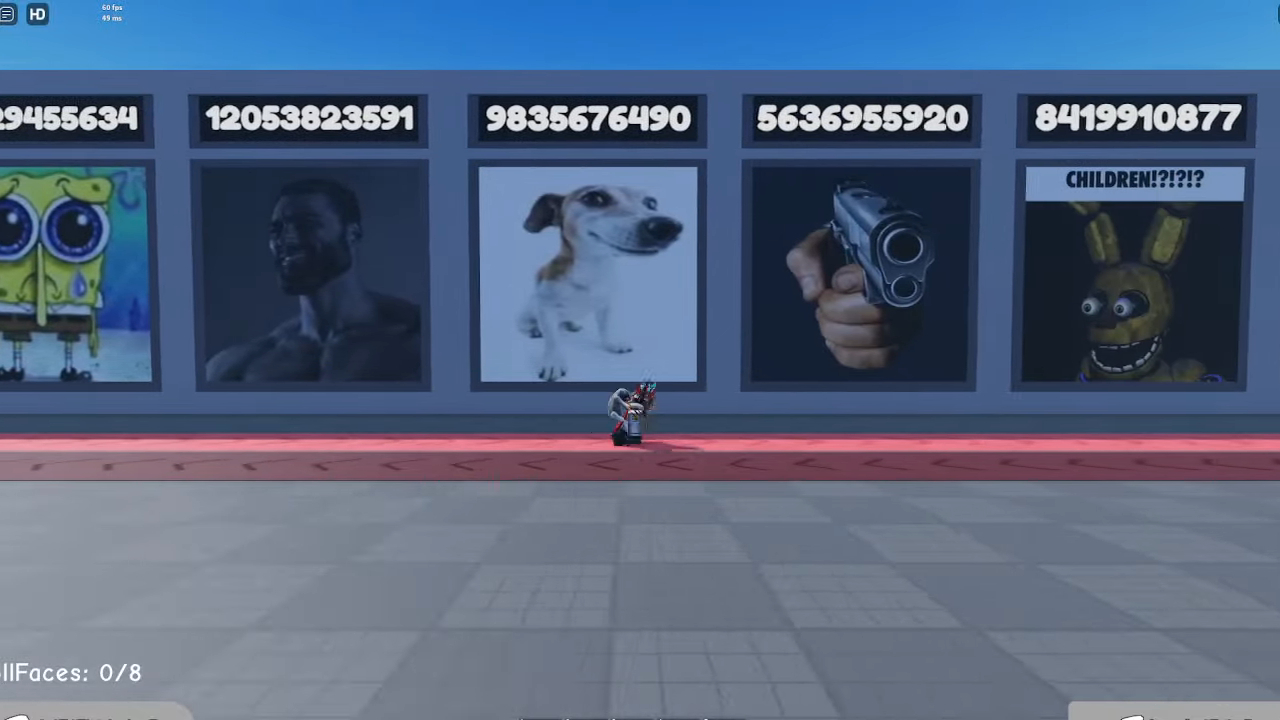



Roblox Character Id Codes How To Use Roblox Decal IDs . Where To Find Your My Melody Roblox Decal ID Codes Best Decal IDs In Roblox 1 . 1400 Roblox Image IDs Decal ID Codes June 2026 WORKING Roblox Image IDs Decal ID Codes Working 300x200 . How To Get Image ID In Roblox Copy Decal ID Easily 2025 Update . What Are Roblox Ice Decals For 2026 Best Decal Ids Roblox




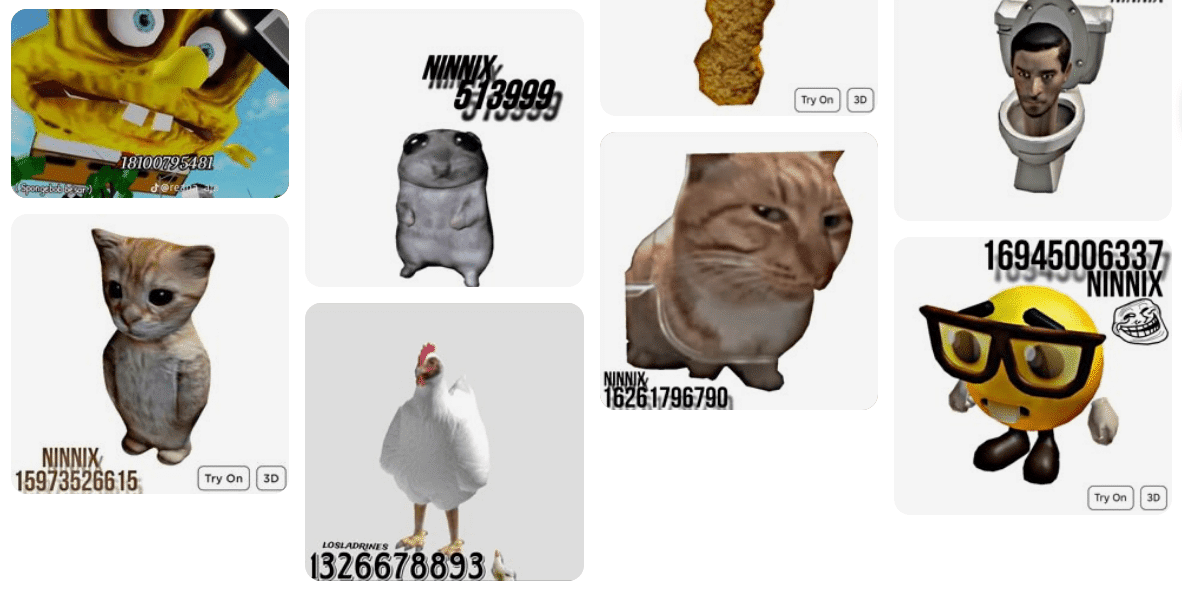
How To Use Roblox Image ID List Over 100 Images Decals Guide Roblox Image Id 1 1 . How To Add People Roblox Easily Your 2026 Guide . 75 Roblox Image Decal IDs WITH IMAGES March 12 2026 BL Image IDs List . Seeking Anime Teddies Roblox ID Codes 2026 How To Find Them . What Exactly Is A Roblox Decal And How Can You Use Them Id Decal Roblox Image



Roblox 2026 The Face ID Game Overhaul Explained TikTok Img. Roblox Image ID Database 2026 Lawod Roblox Image ID Database 1536x864 . Roblox 2026 Logo REVEALED New Color New Look YouTube Maxres2 . 190 Roblox Image Ids Ideas In 2026 Roblox Image Ids Bloxburg Decals . Roblox Face Id




Roblox 2026 Logo Evolve YouTube Oardefault . Roblox 2026 New Logo REVEAL First Look At The Future Shorts YouTube Hq2 . Collection Of The Latest Roblox Image ID And How To Use Them Images 60 5NdTQoMb7T . Roblox New 2026 Logo Roblox Reels Humbled Gamer Facebook Media. Roblox 2026 Logo Roblox YouTube Oar2



How To Message On Roblox 2026 A Quick Guide . 100 Roblox Music Code ID S 2026 WORKING AFTER UPDATE Roblox Song . 13 Roblox Image Ids Ideas In 2025 Roblox Image Ids Roblox Rh Design . Definitive Guide To Roblox 2026 TM 07169 Definitive Guide To Roblox 2026 . LOGO Roblox 2026 YouTube Maxres2


:quality(30):format(webp):focal(0.5x0.5:0.5x0.5)/pontianak/foto/bank/originals/VIRAL-Alasan-Pemerintah-Blokir-Roblox-di-Indonesia.jpg)
Roblox ID Does Your Digital Identity Truly Matter Songid Roblox2024 02 . How To Get Image ID Roblox 2026 Step By Step Guide YouTube . Seeking Illuminati Song ID Roblox Codes In 2026 Plead Roblox Music ID Codes . Daftar Code ID Roblox Brookhaven Terbaru 2026 Lengkap Beserta Hadiahnya . Aturan Baru Roblox 2026 Hapus Fitur Chat Cara Lewat VIRAL Alasan Pemerintah Blokir Roblox Di Indonesia


Roblox 2026 Logo Icons Free Download In SVG PNG Free Roblox Icon Svg Download Png 5575116 . How To Get Image ID For Roblox Decal ID Full Guide YouTube . Roblox Id Face Codes . Prepare For 2026 With Roblox Trends TikTok Img. 100 Melhores Adesivos Do Roblox IDs De Imagem 2026 Word Image 276876 1