Navigating the world of mobile gaming often means juggling multiple apps, especially when you want the perfect soundtrack to your Roblox adventures. This guide provides actionable steps on how to play music while playing Roblox on mobile devices, ensuring your gameplay remains immersive and enjoyable. Discover easy methods for both Android and iOS users, learn about optimizing performance, and get tips for integrating your favorite tunes without disruptions. For gamers balancing jobs, families, and life, finding quick, reliable solutions to enhance relaxation and fun is key. This article helps you achieve that optimal gaming environment, making your Roblox sessions more engaging and stress-free. Avoid common setup issues and enjoy seamless background audio for a truly personalized gaming experience.
What is the simplest way to play music during Roblox on mobile?
The simplest method involves starting your preferred music app, such as Spotify or Apple Music, then launching Roblox. Most modern mobile operating systems (Android and iOS) are designed to handle background audio playback, allowing your music to continue uninterrupted as you enter your Roblox game. Ensure your device's volume settings are balanced between the game and music application.
Will playing music in the background cause lag in Roblox on my phone?
For most newer smartphones, playing music in the background while running Roblox will have minimal impact on performance. However, older devices or phones with limited RAM might experience slight slowdowns. To minimize lag, close unnecessary background apps and ensure your device has sufficient free storage and memory. Optimize your music app for offline playback to reduce network strain.
Can I use YouTube or SoundCloud for background music on Roblox mobile?
Yes, you can use YouTube or SoundCloud for background music, though with some caveats. On both iOS and Android, YouTube generally stops playing when you navigate away from the app unless you have a YouTube Premium subscription. SoundCloud, however, offers background playback for many users without a premium account. For seamless, uninterrupted music, dedicated streaming services like Spotify or Apple Music are usually more reliable.
How do I adjust music volume independently from Roblox game sounds?
Mobile devices typically allow separate volume control for media (music) and in-app sounds. After starting your music and then Roblox, you can often use your device's physical volume buttons to adjust overall media volume. For finer control, access your phone's sound settings or the individual app settings within Roblox itself, if available, to mute or lower specific in-game sound effects, allowing your music to shine through.
Are there any Roblox games that block background music?
Generally, Roblox games themselves do not have the capability to block system-level background music playback. If your music stops, it's more likely due to your device's memory management, the music app's specific settings (e.g., YouTube free tier), or a temporary system glitch. Always check your music app and phone settings first if you encounter unexpected interruptions.
What if my music stops when a Roblox ad plays?
When Roblox displays in-game video ads, these often take over the device's audio focus to play their own sound. This can temporarily pause or lower your background music. Once the ad concludes, your music app should typically resume playback automatically. This is a common behavior designed to prioritize the ad's audio, and generally cannot be circumvented without a premium ad-free experience on Roblox, if such an option exists in the future.
Is it possible to use a Bluetooth headset for both Roblox audio and background music?
Absolutely, a Bluetooth headset is ideal for managing both Roblox game audio and background music simultaneously. Your phone will output all media audio, including both apps, through the headset. This provides a private, immersive experience. You can then use the volume controls on your headset or device to balance the sound levels as desired, ensuring a comfortable and customized audio mix for your gaming session.
Are you a dedicated gamer who also balances a busy life, perhaps a job, family, or other commitments? You’re not alone. Many US gamers, part of the 87% who play regularly, spend over 10 hours a week on their favorite titles, with mobile gaming dominating a significant portion of that time. We value our gaming sessions as a crucial outlet for relaxation, fun, and even social connection. But there's a common little frustration: how do you get your perfect playlist running while diving into Roblox on your phone, without interruptions or performance hitches?
You want that immersive experience, whether it's upbeat tunes for an obby or chill ambient sounds for a building game. Fumbling with apps, dealing with sudden pauses, or battling lag can quickly turn a relaxing session into a chore. For gamers who prioritize efficiency and enjoyment, a seamless audio setup is a game-changer. This comprehensive guide will walk you through exactly how to play music while playing Roblox on mobile, covering both Android and iOS devices, troubleshooting tips, and optimization strategies to ensure your gaming soundtrack is always on point. Let's make your mobile Roblox experience truly yours, without the headache.
Why Enhance Your Roblox Experience with Background Music?
For many gamers, particularly those balancing adult responsibilities, gaming is more than just a pastime; it's a vital form of stress relief and personal escape. Adding background music to your Roblox sessions elevates this experience considerably. It allows for a deeper immersion into the game world, setting the perfect mood whether you're exploring vast virtual landscapes, competing in fast-paced mini-games, or collaborating with friends in a social hub. Think about it: a custom soundtrack can transform a mundane task into an epic adventure or simply make repetitive grinding more tolerable and enjoyable. It's about personalizing your digital space to maximize relaxation and fun, making your limited gaming time more impactful.
Beyond personal enjoyment, music can also enhance focus and even performance for some players. The right beats can get you into a rhythm, improving reaction times or helping maintain concentration during intricate challenges. This desire for personalized environments extends to the significant social aspect of Roblox, where players often want to share a particular vibe or simply enjoy their favorite tunes while chatting with friends. Recent trends indicate that mobile gamers often multitask, making seamless background audio a highly sought-after feature for a complete, modern gaming experience.
How to Play Music While Playing Roblox on Android Devices?
Playing your favorite music while exploring Roblox on an Android phone or tablet is generally straightforward, thanks to Android's robust multitasking capabilities. The most common and reliable method involves starting your music application before launching Roblox. Here’s a simple step-by-step guide:
Open your preferred music streaming app, such as Spotify, YouTube Music, Apple Music, or Pandora. Ensure you're logged in and have started playing a song or playlist.
Once your music is playing, minimize the music app by navigating back to your home screen or switching to another app. The music should continue playing in the background.
Now, open the Roblox application. The game should launch, and your music should continue playing simultaneously.
Use your device's physical volume buttons to adjust the overall media volume. For finer control, you can often go into your phone's sound settings or the individual app settings to balance Roblox game audio against your background music.
For optimal performance, especially on older Android devices, consider closing any other unnecessary background applications before starting Roblox. This frees up RAM and processing power, ensuring both Roblox and your music app run smoothly without lag or stuttering. If you're using a free version of a service like YouTube, be aware that the music might pause if the screen locks or you switch back to the home screen, making premium services generally more reliable for continuous playback.
How to Play Music While Playing Roblox on iOS Devices?
Apple's iOS platform is also well-equipped for background audio playback, making it easy to enjoy music while immersed in Roblox. Whether you're on an iPhone or iPad, the process is very similar to Android, leveraging iOS's efficient multitasking features. Follow these steps for a smooth setup:
Launch your music application of choice, such as Apple Music, Spotify, YouTube Music, or Tidal. Start playing your desired song or playlist.
With the music actively playing, swipe up from the bottom (or down from the top-right on newer iPhones/iPads) to access the Control Center. Verify that the music is playing and can be controlled from here.
Navigate back to your home screen or switch directly to the Roblox app. Your music should seamlessly continue playing in the background as Roblox loads.
Adjust the volume using your device's side buttons. For a more balanced audio experience, you might need to adjust in-game sound settings within Roblox itself, as iOS typically provides a single media volume control for all background audio.
iOS devices are generally excellent at managing background processes, so you'll rarely encounter performance issues unless your device is very old or critically low on storage. Always ensure your iOS version and Roblox app are up-to-date for the best compatibility and stability. Just like with Android, free YouTube playback might pause if the app isn't in the foreground or if the screen locks, so premium options offer a more uninterrupted experience.
What Are the Best Music Apps for Seamless Mobile Gaming?
Choosing the right music app is crucial for a smooth, uninterrupted background audio experience while gaming on Roblox mobile. While many apps offer music, some are better optimized for multitasking. Here are some top recommendations:
Spotify: Widely popular, Spotify offers robust background playback on both free and premium tiers. Premium removes ads and allows offline downloads, making it ideal for uninterrupted gaming. Its extensive library and curated playlists are perfect for setting any gaming mood.
Apple Music: For iOS users, Apple Music integrates seamlessly with the operating system, providing excellent background playback and control via the Control Center. Subscribers get ad-free listening and access to a massive catalog, making it a natural choice for iPhone and iPad gamers.
YouTube Music Premium: While the free version of YouTube Music (and standard YouTube) often pauses in the background, a Premium subscription solves this, enabling continuous background playback. This is great if you prefer video game soundtracks or specific mixes often found on YouTube.
Pandora: Another strong contender for radio-style listening, Pandora offers reliable background playback. Its ad-supported tier might have occasional interruptions, but the premium versions provide an ad-free experience, perfect for long Roblox sessions.
Local Music Player Apps: If you have music files stored directly on your device, using a local music player app (like Google Play Music for Android or the default Music app for iOS with synced tracks) ensures absolutely no internet reliance or streaming interruptions. This is the ultimate ad-free, data-saving solution.
Ultimately, the best app depends on your personal preference and whether you prioritize ad-free listening, specific content libraries, or offline playback capabilities for minimal data usage and maximum reliability.
Does Playing Music Impact Roblox Mobile Performance?
This is a common concern for mobile gamers, especially those with devices that aren't top-of-the-line. The good news is that for most modern smartphones and tablets (manufactured in the last 3-4 years), playing music in the background while running Roblox will have a minimal, often negligible, impact on performance. Modern operating systems like Android and iOS are designed to manage multiple applications efficiently, dedicating resources as needed.
However, there are scenarios where you might notice a slight dip:
Older Devices: Phones or tablets with less RAM (e.g., 2GB or less) or slower processors might struggle to smoothly run both a graphics-intensive game like Roblox and a streaming music app. This could manifest as frame rate drops, longer loading times, or occasional stutters in either the game or the music.
Low Storage: If your device is critically low on internal storage, it can affect overall system performance, including multitasking. Ensure you have ample free space.
Network-Intensive Tasks: If both Roblox and your music app are streaming content simultaneously over a weak Wi-Fi or cellular connection, you might experience lag. Opt for offline music playback if your streaming service allows it, or ensure a strong internet connection.
Too Many Background Apps: Close any other unnecessary applications running in the background. Each active app consumes resources, so minimizing these helps dedicate more power to Roblox and your music.
In summary, while a slight theoretical impact exists, practical performance issues are rare for most users. If you do notice slowdowns, troubleshooting usually involves optimizing your device's background processes and ensuring a stable network.
How to Troubleshoot Common Audio Conflicts on Mobile?
Sometimes, your carefully curated audio setup might hit a snag. Audio conflicts are frustrating, but most can be resolved with a few simple troubleshooting steps. Here are common issues and their solutions:
Music Pauses When Roblox Starts:
Solution: This usually happens if Roblox takes audio focus. Try starting the music *after* Roblox has fully loaded, then quickly switch to your music app, start playback, and switch back. Alternatively, some devices allow you to set audio focus priorities in developer options, but this is advanced.
Solution: Ensure your music app isn't being aggressively optimized for battery saving in your device settings. Disable battery optimization for your music app to keep it running smoothly in the background.
Roblox In-Game Sounds are Too Loud/Quiet Compared to Music:
Solution: Access Roblox's in-game settings (usually through the menu icon in the top-left corner). Look for "Settings" or "Sound" options and adjust the game's sound effects and music volume sliders independently. Then, use your phone's physical volume buttons to control your external music app's volume.
Music Stops During Roblox Video Ads:
Solution: This is expected behavior. Video ads often seize audio focus to play their own sound. Your music should resume automatically once the ad finishes. There's usually no direct way to prevent this without an ad-free Roblox experience, which isn't currently a widely available feature.
No Sound at All from Either App:
Solution: Check your device's mute switch or silent mode. Ensure volume is turned up. Disconnect and reconnect any Bluetooth headphones. Restart both the music app and Roblox. Sometimes a full device restart is needed to clear audio glitches.
By systematically addressing these common issues, you can usually restore your dual-audio setup quickly and get back to enjoying your games with your chosen soundtrack.
Tips for a Better Music and Roblox Mobile Gaming Experience?
To truly elevate your "how to play music while playing roblox on mobile" experience, consider these pro tips that go beyond basic setup:
Invest in Quality Headphones: A good pair of wired or Bluetooth headphones can drastically improve sound quality and immersion. They also prevent disturbing others, making your gaming more personal and enjoyable, especially when you're unwinding after a long day.
Create Curated Playlists: Tailor playlists specifically for different Roblox games or moods. Have an action-packed playlist for combat games, a chill playlist for building, or a focus-enhancing one for puzzle challenges. This customization adds another layer of enjoyment for busy adult gamers.
Download Music Offline: If your streaming service offers it, download your playlists for offline playback. This not only saves cellular data but also ensures uninterrupted music even in areas with spotty internet, and reduces network strain that could affect game performance.
Optimize Battery Life: Running two apps actively can drain battery faster. Consider using a low-power mode if available, or keep a portable charger handy for extended gaming sessions. Disabling unnecessary notifications can also conserve power and reduce distractions.
Experiment with Sound Balance: Spend a few minutes at the start of your session to find the perfect balance between Roblox's in-game sounds and your background music. Some games benefit from having game sounds lower, while others need them prominent. This fine-tuning is key to an optimized experience.
Join Social Hubs with Friends: Mobile gaming often involves social play. Encourage your friends to also use background music or share your playlists while in a Discord call or Roblox party. This creates a shared, enhanced experience that builds on current social gaming trends.
By implementing these tips, you can transform your mobile Roblox sessions into a truly personalized, high-quality, and stress-free entertainment experience, perfectly suited for the modern gamer balancing life and leisure.
Can I Use In-Game Music Codes on Mobile While Playing Other Music?
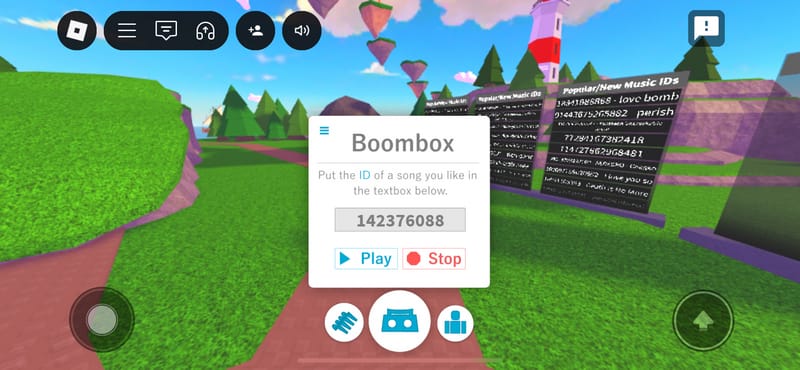
This is a fantastic question and touches on a nuanced aspect of Roblox audio. Roblox itself allows creators to implement in-game music players that often rely on unique "music codes" or "audio IDs" to play specific tracks from the Roblox audio library. If a game has such a feature and you activate it, what happens to your background music?
Generally, when a Roblox game's internal music player starts, it will take audio focus. This means your external music app (like Spotify or Apple Music) will likely pause or be significantly lowered in volume. The game's internal audio system prioritizes its own sounds. This is by design, as the game creator intends for you to hear their chosen in-game audio. If you want your personal music to continue, you would need to stop the in-game music player within Roblox. It's usually an either/or situation unless the game offers very granular audio controls that allow external music to override or blend seamlessly, which is rare. So, while you *can* use in-game codes, expect your external music to be temporarily suppressed.
Balancing Your Device's Sound Settings for Optimal Play?
Achieving the perfect audio mix between your Roblox game and your background music requires a little finesse with your device's sound settings. Most mobile devices have a master media volume that controls all audio output. However, both Roblox and your music app may offer their own internal volume controls, allowing for a more customized balance. Here’s how to approach it:
Set Master Volume: Start by setting your phone's physical volume buttons to a comfortable overall level. This is your baseline for all media.
Adjust Music App Volume: Within your music app (Spotify, Apple Music, etc.), you typically won't find a separate volume slider, as it usually defers to the system's media volume. However, ensure no equalizer settings are distorting sound.
Fine-Tune Roblox Volume: Open Roblox, access the in-game settings (often via the three-dot menu or gear icon). Look for "Sound" or "Audio" options. Here, you'll usually find sliders for "Sound Effects," "Music," and "Environment." You can lower the in-game music or sound effects to let your external playlist shine through, or raise them if you want more game immersion.
Experiment: Play a bit of Roblox with your music on. Adjust the in-game sliders until you find a balance where both game sounds and your music are audible and enjoyable without one overpowering the other. This iterative process helps you find your personal sweet spot.
Remember, your optimal balance might change depending on the specific Roblox game you're playing. A quiet building game might benefit from prominent background music, while a competitive action game might need game sound effects to be clearer for crucial audio cues.
What Are the Social Benefits of Personalized Game Soundtracks?
For many US gamers, particularly those in the Gen Z and Millennial age brackets who grew up with both mobile tech and social platforms, gaming is intrinsically linked with social connection. Adding a personalized soundtrack to your Roblox sessions brings unexpected social benefits, aligning with current trends where users curate every aspect of their digital presence.
Shared Experience: If you're playing Roblox with friends and communicating via Discord or another voice chat, you can all agree on a shared playlist. This creates a collective mood and strengthens the social bond, much like listening to music together in person. It adds another layer to the "cozy gaming" trend, fostering a relaxed, communal atmosphere.
Mood Setting for Streams/Content: For those who stream their Roblox gameplay or create content, background music is essential. A carefully chosen playlist can set the tone for your audience, making your content more engaging and professional. Even if you're not a streamer, thinking this way about your personal "broadcast" can enhance your own enjoyment.
Personal Expression: Your choice of music is a reflection of your personality. While Roblox doesn't natively broadcast your personal music to others, knowing you're gaming to your unique soundtrack adds a sense of personal expression and comfort, which is crucial for adults who use gaming to unwind and be themselves.
Conversation Starter: When discussing your gaming session with friends, mentioning your custom soundtrack can be a fun conversation starter, sharing recommendations and discovering new music together. This subtly reinforces social connections around shared interests.
In essence, integrating music isn't just about sound; it's about curating an entire vibe that enhances both your personal enjoyment and your social interactions within the vast, interconnected world of mobile gaming.
Conclusion
There you have it! Playing music while immersing yourself in Roblox on your mobile device doesn't have to be a complicated ordeal. With the right approach for your Android or iOS device, a smart choice of music apps, and a few troubleshooting tricks, you can seamlessly blend your favorite tunes with your gaming adventures. This simple enhancement can significantly boost your relaxation, improve focus, and make your valuable gaming time even more enjoyable, perfectly fitting into the busy lives of today's adult gamers.
So, go ahead, crank up your personalized soundtrack and dive into the boundless worlds of Roblox. What's your favorite playlist for gaming? Share your biggest gaming challenge in the comments below!
FAQ Section
Is it safe to run music apps and Roblox simultaneously?
Yes, it is generally safe to run music apps and Roblox at the same time on your mobile device. Modern smartphones are designed to handle multiple applications efficiently without causing harm to the device. The main considerations are potential battery drain and minor performance impacts on older hardware, which can be mitigated with the tips provided in this guide.
Will playing music drain my mobile battery faster?
Yes, running two active applications simultaneously, especially if one is a streaming music app and the other is a graphically intensive game like Roblox, will consume more battery power than running just one app. The increase in battery drain depends on your device's age, battery health, and the intensity of both applications. Keeping your screen brightness down and closing other background apps can help conserve power.
Can I control music playback without leaving Roblox?
Yes, you can typically control music playback without fully leaving Roblox. On iOS, swipe down from the top-right (or up from the bottom on older devices) to access the Control Center, where you can play, pause, skip, and adjust volume. On Android, you can often swipe down from the top of the screen to access the notification shade, which usually contains media controls for your background music app. This allows for quick adjustments without interrupting your game.
Are there any specific Roblox games that benefit from background music?
Absolutely! Games that involve exploration, building, role-playing, or slower-paced activities often benefit greatly from custom background music. For example, a chill lo-fi playlist can enhance a building simulation, while an epic orchestral score might elevate an adventure game. Even competitive games can feel more intense with a high-energy soundtrack. It's all about personalizing the atmosphere to your preference.
Easy setup for background music on mobile devices while playing Roblox. Compatible methods for both Android and iOS users. Tips for optimizing device performance to avoid lag with music and gaming. Enhances gaming immersion and relaxation. Solutions for common audio conflicts and troubleshooting. Ideal for adult gamers seeking stress-free entertainment and personalized experiences. Improve social gaming with custom soundtracks.
34


How To Play Music While Playing Roblox Step By Step YouTube . Listen To Music While Playing Roblox All Devices How To Play Your . How To Play Music While Playing Roblox Fastest Guide YouTube . How Do I Listen To Music While Playing Roblox . How To Play Roblox While Listening To Music MOBILE IOS Android


How To Play Music While Playing Roblox On IPhone Simple Guide YouTube . How Do I Listen To Music While Playing Roblox How To Play Music While Playing Roblox . How To Play Music On Spotify While Playing Roblox On Mobile YouTube . How To Listen To Music While Playing Roblox Gamer Tweak How To Play Music While Playing Roblox . How To Listen To Music While Playing Roblox Complete Guide 2026


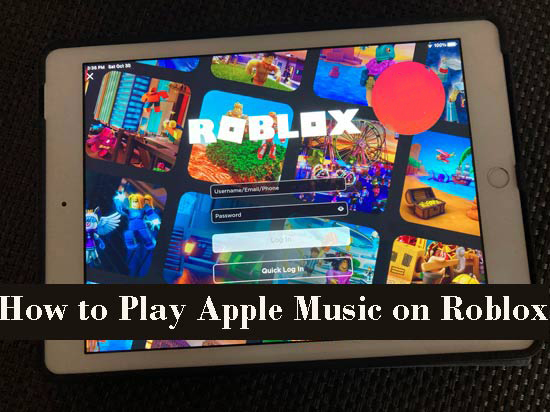

How To Listen To Music While Playing Roblox PC Mobile YouTube . How To Play Music On Spotify While Playing Roblox Full Guide YouTube . Roblox Rhythms Jam Out While You Game How To Play Music While Playing Roblox . How To Play Apple Music On Roblox For Mobiles And Desktops How To Play Apple Music On Roblox . How To Play Music While Playing Roblox Full Guide YouTube

Roblox How To Play Music The Daily Juice HOW PLAY MUSIC ROBLOX . How To Listen To Music While Playing Roblox Fixed Alvaro Trigo S Blog Cant Listen Music Playing Roblox Mobile . How To Listen To Spotify While Playing Roblox Without Pausing Listen To Spotify While Playing Roblox 300x161 . Roblox Rhythms Keep Your Music Flowing How Can I Listen To Music While Playing Roblox . How To Play Music While Playing Roblox 2026 Full Guide YouTube


How To Play Music While Playing Roblox In SECONDS YouTube . How To Listen To Spotify While Playing Roblox On IPhone YouTube . Roblox Rhythms Jam Out While You Game . How To Listen To Music While Playing Roblox TuneCable Play Music On Roblox With Boombox . How To Listen To Music While Playing Roblox TuneCable How To Listen To Music While Playing Roblox

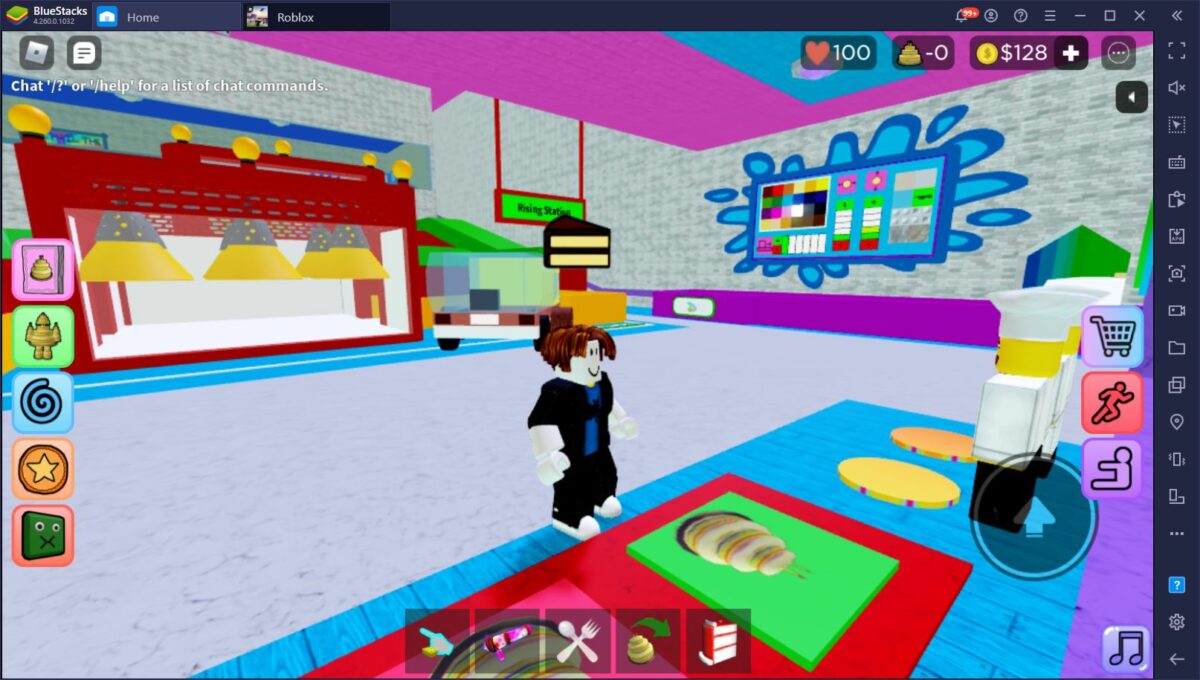

How To Play Spotify While Playing Roblox On IPhone YouTube . How Do I Listen To Music While Playing Roblox Steps For Playing Music On Spotify 1 . How Can You Play Roblox In 2026 And Beyond How To Play Roblox . How To Listen To Music While Playing Roblox Image. How To Play Music While Playing Roblox Full Guide YouTube


Roblox How To Listen To Music While Playing Roblox Play Spotify While . How To Play Music On Spotify While Playing Roblox Tutorial Mobile . 2021 How To Play MUSIC On Roblox YouTube . Mic Games In Roblox At Harrison Fong Blog