Are you a dedicated gamer balancing epic quests with real-life responsibilities? Ever been frustrated by stuttering frame rates or slow loading screens when trying to unwind with your favorite title? Understanding your desktop PC RAM is crucial for smooth, immersive gaming experiences. This comprehensive guide cuts through the tech jargon, offering practical, actionable advice for optimizing your system's memory. We'll explore everything from choosing the right capacity and speed to easy upgrade paths and troubleshooting common issues, all designed for the busy US gamer. Whether you're chasing high refresh rates in competitive esports or simply want a stable, enjoyable session after a long day, mastering desktop PC RAM is key. We'll delve into DDR4 versus DDR5, the benefits of dual-channel setups, and how to get the most bang for your buck without breaking the bank. This article is your ultimate resource for ensuring your RAM never holds back your gaming adventures, making every precious moment count.
What is desktop PC RAM and why is it crucial for gaming?
Desktop PC RAM, or Random Access Memory, is your computer's ultra-fast short-term memory. It temporarily stores data and instructions your CPU needs to access immediately, like game assets and operating system functions. For gamers, sufficient and fast RAM means smoother gameplay, faster loading screens, and reduced stuttering, as the system doesn't have to constantly pull data from much slower storage drives.
How much RAM is truly ideal for modern PC gaming in 2026?
For most modern PC gamers in 2026, 16GB of desktop PC RAM remains the practical minimum for a smooth experience across popular titles. However, if you frequently multitask, stream, or play resource-heavy games, upgrading to 32GB is becoming the new sweet spot, providing a comfortable performance buffer without significant diminishing returns or unnecessary expense. It ensures your system handles both gaming and background tasks effortlessly.
Is upgrading from DDR4 to DDR5 RAM worth it for an existing gaming setup?
Upgrading from DDR4 to DDR5 RAM typically isn't a direct upgrade path for an existing setup, as it requires a new motherboard and CPU. DDR5 offers higher speeds and bandwidth, benefiting new, high-end builds. For existing DDR4 systems, performance gains from simply swapping RAM are negligible unless your motherboard supports DDR5. Instead, ensure your DDR4 setup is in a dual-channel configuration with adequate speed (e.g., 3600MHz CL16) for optimal performance.
What are the tell-tale signs that my desktop PC RAM is bottlenecking my games?
Key signs your RAM is bottlenecking include frequent game stutters or freezes, unusually long loading times, persistent low minimum framerates (1% and 0.1% lows), and constant hard drive activity during intense gameplay (indicating heavy use of virtual memory). Checking your Task Manager while gaming and seeing consistently high RAM usage (90%+) is a definitive indicator it's time for an upgrade.
Can using slower RAM negatively impact my high-end CPU and GPU?
Absolutely. Even with a top-tier CPU and GPU, slower or insufficient RAM can act as a significant bottleneck. Your high-performance components will spend more time waiting for data from the RAM, leading to underutilization and a less fluid gaming experience. Faster RAM, especially in a dual-channel configuration, ensures your CPU and GPU can perform closer to their full potential, maximizing your investment in those expensive parts.
How can I ensure my desktop PC RAM is running at its advertised speed?
To ensure your desktop PC RAM runs at its advertised speed, you must enable the XMP (Extreme Memory Profile) or DOCP (Direct Overclock Profile for AMD) feature in your motherboard's BIOS/UEFI settings. RAM often defaults to slower speeds; XMP applies the manufacturer-defined optimal settings. Reboot your PC, enter BIOS (usually by pressing Del or F2), find the XMP setting, enable it, and save changes.
What are the best practices for installing new desktop PC RAM modules?
Before installing new RAM, power down and unplug your PC, then ground yourself to prevent static discharge. Open your PC case and locate the RAM slots. Unlatch the clips, align the new RAM module with the notch in the slot, and gently press down on both ends until the clips snap into place. For dual-channel performance, refer to your motherboard manual for the correct slot configuration (usually alternating slots, like A2 and B2). Power on and confirm detection in BIOS.
Ever felt that familiar pang of frustration when your game stutters at a critical moment, or a new level takes an eternity to load? You’re not alone. For many US gamers, particularly those balancing demanding jobs, family life, and social commitments, precious gaming time is a luxury. We want our systems to perform flawlessly so we can relax, build skills, or connect with friends without technical headaches. Lag and slow performance aren't just annoying; they steal away those precious moments of escape and fun. That’s where understanding your desktop PC RAM comes in. It's often the unsung hero—or silent villain—behind your system's responsiveness. With 87% of US gamers playing regularly, and many averaging 10+ hours a week, optimizing your rig isn't just about bragging rights; it's about making the most of your valuable leisure time.
This guide is designed to be your trusted friend in the tech world, breaking down everything you need to know about desktop PC RAM. We're cutting through the hype and focusing on practical solutions for real-world gaming scenarios. Whether you're looking to upgrade on a budget, troubleshoot performance issues, or simply understand what makes your games run smoother, you've come to the right place. We'll cover everything from the basics of what RAM does to advanced optimization techniques, ensuring your PC is ready for both the latest AAA titles and those cozy social gaming sessions that are trending this month. Let’s get your system running like a dream so you can focus on what truly matters: epic gaming.
What Exactly is Desktop PC RAM and Why Does it Matter for Gaming?
RAM, or Random Access Memory, is essentially your computer's short-term memory. Unlike your hard drive or SSD, which stores data long-term, RAM is where your PC keeps the data it needs to access *right now*. Think of it as your desktop workspace: the more space you have, the more applications and files you can have open and ready to use without constantly shuffling things in and out of storage. For gaming, this is incredibly important because games constantly load and unload textures, character models, sound files, and game logic. If your system doesn't have enough fast RAM, it has to rely on slower storage, leading to noticeable stutters, longer loading times, and a generally less fluid experience. Modern games are incredibly data-intensive, making robust desktop PC RAM a cornerstone of high performance.
How Much Desktop PC RAM Do I Really Need for Modern Gaming?
This is perhaps the most common question, and the answer isn't a simple one-size-fits-all. While 16GB has been the sweet spot for a long time, the landscape is shifting. For most US gamers balancing titles like Warzone, Cyberpunk 2077, or even popular social games like Palworld and Helldivers 2, 16GB of desktop PC RAM remains a solid baseline. It's enough to run almost all current games smoothly, especially if you're not multitasking heavily. However, if you're streaming, running multiple applications in the background (like Discord, Chrome with many tabs, and editing software), or playing resource-hungry simulation games, 32GB of RAM is increasingly becoming the new recommended standard. It provides a comfortable buffer, eliminating potential bottlenecks and ensuring a consistently smooth experience. Going beyond 32GB, say to 64GB, is generally overkill for pure gaming and more suited for professional content creation or specialized tasks, offering diminishing returns for gaming performance alone.
DDR4 vs DDR5: Which RAM Technology is Best for My Gaming PC?
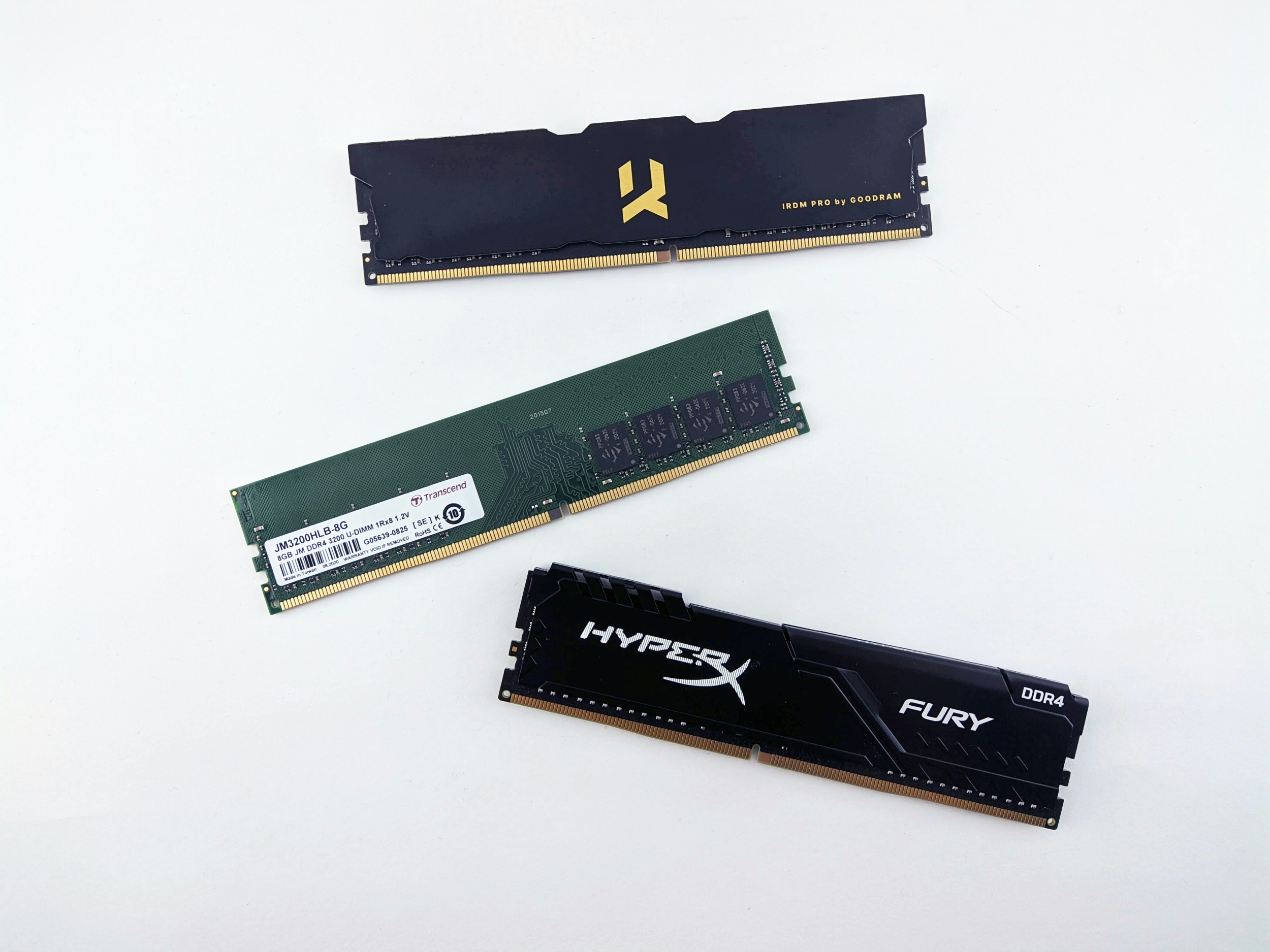
The choice between DDR4 and DDR5 RAM is a hot topic. DDR4 has been the standard for years, offering excellent performance and affordability. However, DDR5 is the newer generation, boasting significantly higher speeds and bandwidth. Here's a quick comparison:
- DDR4: More mature, widely compatible, and generally more budget-friendly. Plenty fast for most games, especially with higher clock speeds and lower latencies. Many existing systems use DDR4.
- DDR5: Offers higher clock speeds (e.g., 4800MHz, 5200MHz, 6000MHz+) and greater bandwidth. Required for the latest Intel 12th/13th/14th Gen and AMD AM5 motherboards. While initially more expensive, prices are becoming more competitive. Performance gains are most noticeable in CPU-intensive games or scenarios where data transfer speed is critical.
If you're building a brand-new, high-end PC, DDR5 is the way to go, as it's future-proof and unlocks the full potential of newer CPUs. If you're upgrading an existing system or building on a tighter budget, DDR4 can still deliver fantastic gaming performance and save you some cash for other components like a better GPU or SSD. Remember, DDR4 and DDR5 are not cross-compatible; your motherboard dictates which type you can use.
Does RAM Speed (MHz) or Latency (CL) Matter More for Gaming Performance?
Both RAM speed (measured in MHz) and latency (measured by CAS Latency or CL) are crucial for gaming performance, and they often work in tandem. Think of speed as how many data packets can be moved per second, and latency as how quickly the RAM responds to a request. Higher speed usually means more data throughput, while lower latency means faster access to that data.
- Speed (MHz): Generally, higher speeds are better. For DDR4, 3200MHz to 3600MHz is considered the sweet spot for Ryzen CPUs, while Intel often benefits from slightly higher speeds. For DDR5, 6000MHz to 6400MHz is a great target. Faster RAM can reduce CPU bottlenecks, leading to higher minimum framerates, especially in CPU-bound games.
- Latency (CL): Lower latency is better. A CL16 kit at 3200MHz is typically faster than a CL18 kit at the same speed. When comparing kits, sometimes a slightly slower speed with significantly lower latency can outperform a faster kit with much higher latency.
The ideal scenario is a balance: aim for the highest speed you can afford with the lowest possible latency. Most gamers will find a good balance around 3600MHz CL16 for DDR4 or 6000MHz CL30/CL32 for DDR5. Always enable XMP (Extreme Memory Profile) in your BIOS to ensure your RAM runs at its advertised speeds, as it often defaults to lower speeds.
Why is Dual-Channel Desktop PC RAM Configuration So Important for Gamers?
Running your desktop PC RAM in a dual-channel configuration is one of the easiest and most impactful performance boosts you can get, often for free if you plan correctly. Most modern motherboards support dual-channel memory, which means they can access two RAM modules simultaneously. Instead of having one lane for data transfer, you effectively have two, doubling the bandwidth available to your CPU. This significantly reduces bottlenecks and can lead to noticeable improvements in framerates, especially minimum framerates, which is crucial for a smooth gaming experience.
For instance, if you have 16GB of RAM, it's far better to use two 8GB sticks than one 16GB stick. Your motherboard manual will typically show you which slots to use for dual-channel operation (often slots 2 and 4, or A2 and B2). Neglecting dual-channel can leave significant performance on the table, sometimes costing up to 20-30% of potential framerates, particularly with AMD Ryzen processors that are very sensitive to memory bandwidth.
How Do I Upgrade My Desktop PC RAM on a Budget?
Upgrading your desktop PC RAM is one of the most straightforward and often budget-friendly ways to breathe new life into an aging gaming rig. Here's how to approach it smart:
- Check Compatibility: First, determine what kind of RAM your motherboard supports (DDR4 or DDR5), the maximum capacity per slot, and the maximum total capacity. Also, check the highest speed it officially supports. Your motherboard's manual or the manufacturer's website will have this information.
- Identify Your Current RAM: Use tools like CPU-Z to see your existing RAM's speed, timings (latency), and whether it's single or dual rank. Ideally, you want to match new RAM to your existing modules for optimal performance, though sometimes you can mix if speeds and timings are similar.
- Shop for Deals: Keep an eye out for sales on reliable brands like Corsair, G.Skill, Crucial, or Kingston. Retailers often have discounts on RAM kits, especially during seasonal sales. Opting for slightly older, but still fast, DDR4 kits can offer incredible value.
- Consider Used Market: For adventurous budget builders, the used market (e.g., eBay, r/hardwareswap) can offer great deals, but always buy from reputable sellers and understand return policies.
- Focus on Capacity First: If you're on 8GB, upgrading to 16GB (two 8GB sticks) should be your priority. This is the biggest performance leap for most gamers.
Remember, a small investment in RAM can make a huge difference, especially if your current setup is bottlenecked by insufficient memory. It's often more impactful for general system responsiveness and multi-tasking than a minor CPU upgrade.
Troubleshooting Common Desktop PC RAM Issues for Gamers
Even the most seasoned gamers can hit a snag with RAM. Here are some common issues and how to tackle them:
- System Not Booting/Black Screen: This is a classic. Try reseating your RAM modules firmly into their slots. Ensure they're clicked in securely. If you have multiple sticks, try booting with just one stick at a time to identify a faulty module.
- Blue Screens of Death (BSODs) with Memory Errors: This often points to unstable or faulty RAM. Run a memory diagnostic tool (Windows Memory Diagnostic or MemTest86 for a more thorough check). If you recently overclocked (like enabling XMP), try disabling it or manually setting less aggressive timings.
- Games Crashing or Freezing: While many things can cause this, RAM is a suspect. Again, memory diagnostics are your friend. Ensure your RAM is running at its advertised speed and not exceeding your motherboard's capabilities.
- Incorrect RAM Capacity Detected: First, check if all modules are properly seated. Next, verify in your BIOS/UEFI that the correct total RAM is recognized. Sometimes a BIOS update can resolve compatibility issues with newer RAM modules.
- XMP Profile Instability: If your system becomes unstable after enabling XMP, your RAM, CPU's memory controller, or motherboard might not be able to handle those speeds/timings. Try manually setting a slightly lower speed or looser timings, or update your BIOS.
Patience and systematic testing are key when troubleshooting RAM. Always back up important data before making significant changes or running diagnostics.
When Should I Consider Upgrading My Existing Desktop PC RAM?
Deciding when to upgrade your desktop PC RAM is about recognizing the symptoms of a memory bottleneck. Here are clear indicators it's time to consider an upgrade:
- Frequent Stuttering or Freezing in Games: Especially when paired with high CPU and GPU usage, this often means your system is struggling to access game data fast enough.
- Slow Loading Times: If games or applications take an unusually long time to launch or load new assets, particularly compared to friends with similar hardware, RAM could be a factor.
- Low Minimum Framerates (0.1% and 1% lows): While average FPS might be decent, poor minimum framerates create a choppy experience. Insufficient or slow RAM can heavily impact these lows.
- Constant Disk Activity: If your hard drive or SSD activity light is constantly flashing during intense gaming or multitasking, it means your system is resorting to virtual memory (page file) on your storage drive, which is much slower than RAM.
- You're Still on 8GB RAM or Less: For any modern gaming, 8GB is simply not enough. An upgrade to 16GB (or 32GB if you multitask heavily) will offer a dramatic improvement across the board.
- You're on Single-Channel RAM: If you have only one stick of RAM, adding a second identical stick to enable dual-channel mode is one of the best performance upgrades you can make.
Monitoring your RAM usage with Task Manager (Windows) while gaming can give you direct insight. If you're constantly near 90-100% usage, it's definitely time for an upgrade.
The Best RAM Brands and Kits for Value-Conscious Gamers
For gamers who value performance without breaking the bank, several brands consistently deliver reliable, high-performance desktop PC RAM. These brands understand the balance needed for the average gamer who wants a smooth experience without falling for marketing hype:
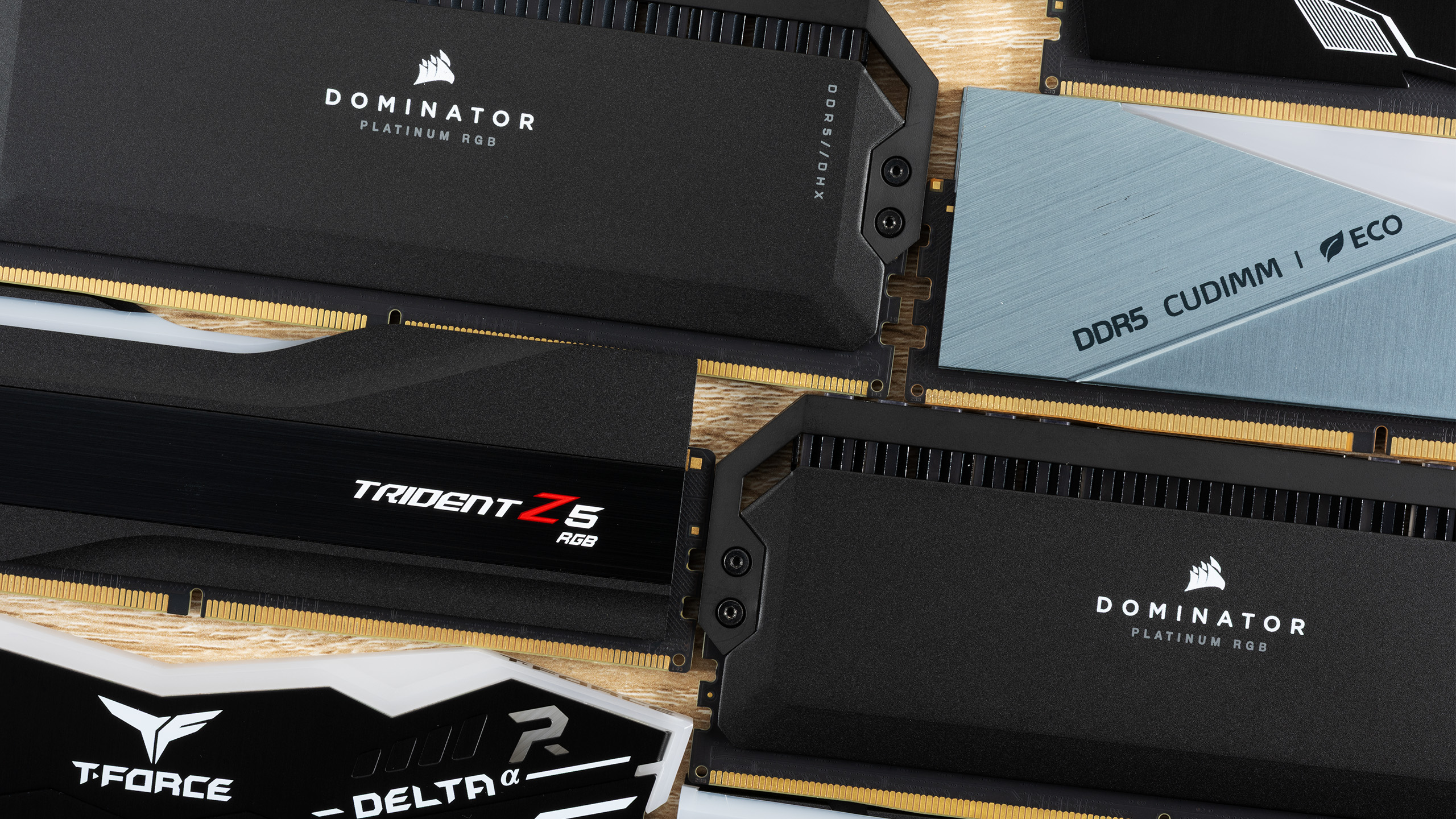
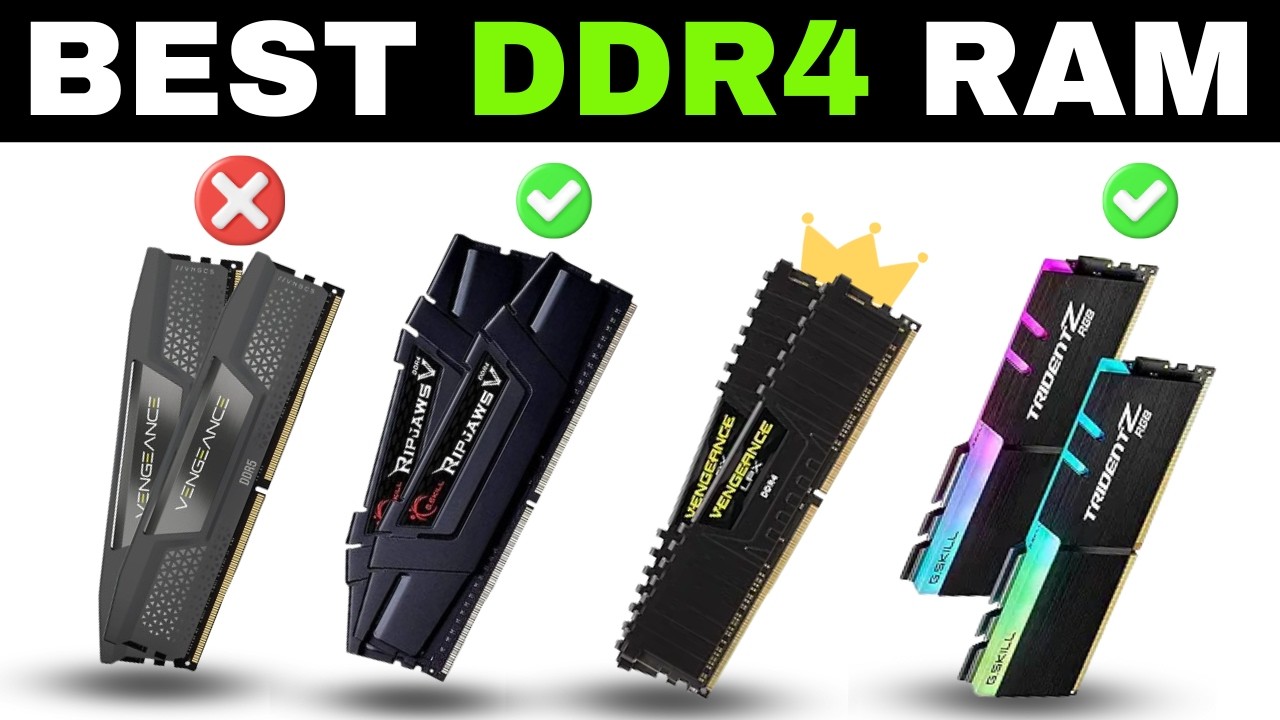
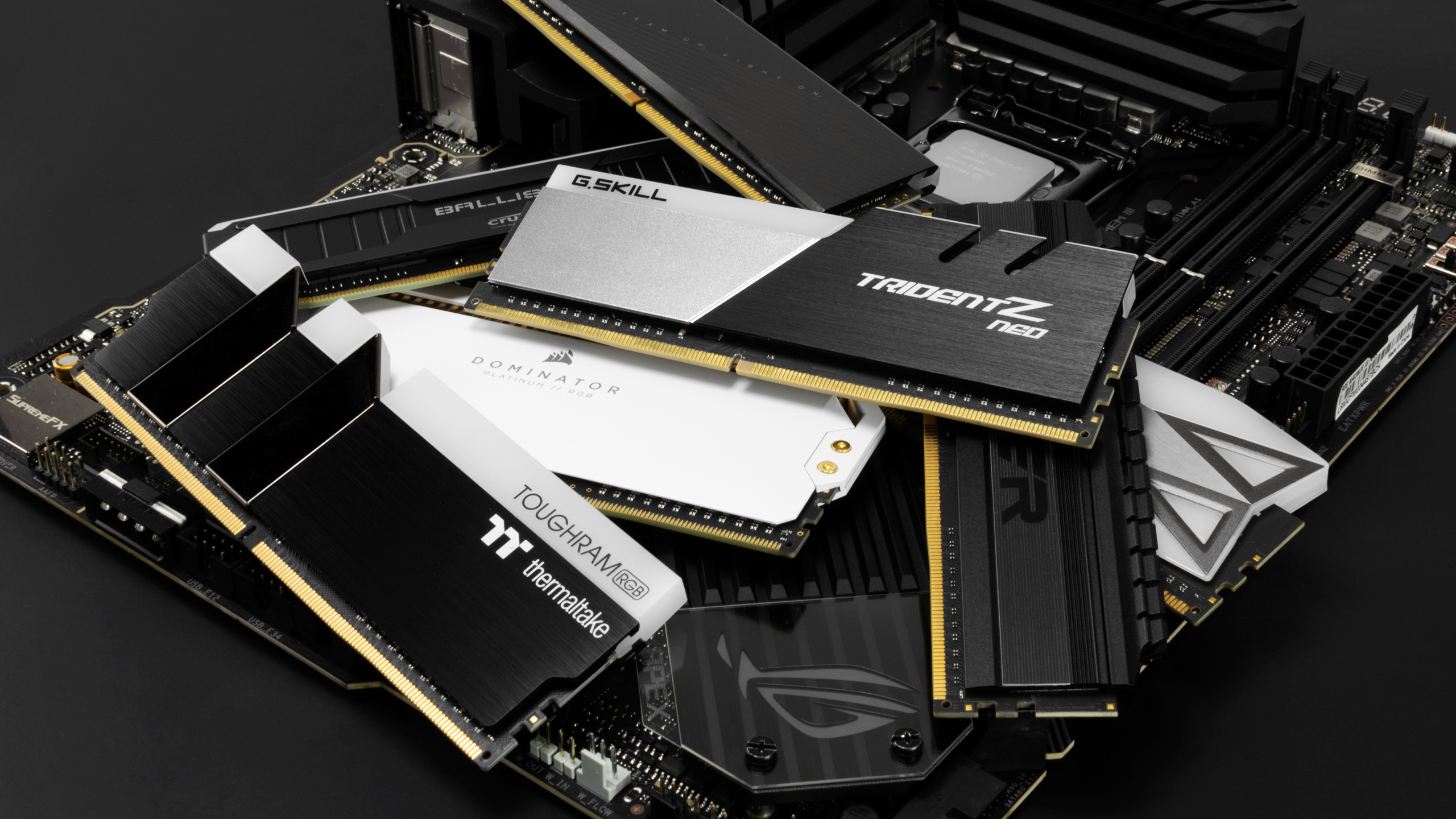
- Corsair Vengeance LPX/RGB Pro: A long-standing favorite, offering a balance of performance, reliability, and often good aesthetics. LPX is great for low-profile builds.
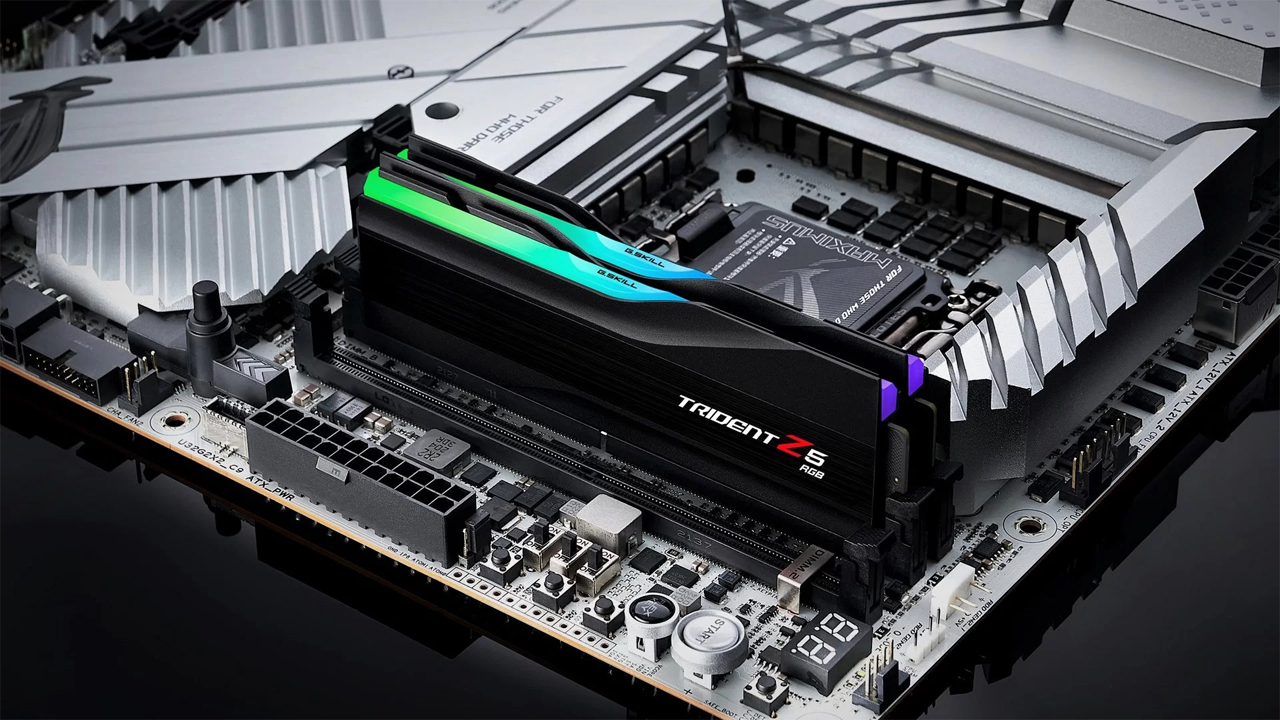
- G.Skill Ripjaws V/Trident Z: Known for excellent performance, especially with AMD Ryzen CPUs, and attractive designs. Ripjaws V is a solid workhorse.
- Crucial Ballistix (now mostly being phased out, replaced by Pro series) / Crucial Pro: Great reputation for stability and value. Often a go-to for no-frills, reliable performance.
- Kingston FURY Beast/Renegade: Kingston offers robust and dependable RAM, with their FURY line targeting gamers with competitive speeds and good value.
- TeamGroup T-FORCE: A rising star, offering aggressive pricing without compromising too much on speed and quality. Their Delta RGB series is particularly popular.
When selecting a kit, prioritize reputable brands, check user reviews, and ensure compatibility with your motherboard and CPU. For 16GB kits, aim for 3200MHz CL16 or 3600MHz CL18 for DDR4. For 32GB kits, aim for 3600MHz CL16 or CL18 for DDR4, or 6000MHz CL30-CL32 for DDR5. Always buy RAM in kits (e.g., 2x8GB or 2x16GB) to ensure compatibility and enable dual-channel performance.
Conclusion: Unlocking Your Gaming PC's Full Potential with Smart RAM Choices
Understanding and optimizing your desktop PC RAM is a vital step in ensuring a consistently enjoyable gaming experience. For US gamers balancing life's demands, every moment spent in your virtual worlds counts. By investing in the right amount of fast, dual-channel RAM, you can dramatically reduce frustrating stutters, slash loading times, and maintain high, stable framerates, transforming your gaming sessions from good to great. Remember to enable XMP, monitor your usage, and don't be afraid to upgrade when your system shows the signs. With mobile gaming dominating casually, but PC gaming still a core for 60% of players, optimizing your rig ensures you're ready for any challenge, whether it's competitive esports or just relaxing with friends in a cozy co-op title. What's your biggest gaming challenge with hardware? Comment below!
FAQ Section
Q: Can different brands of RAM work together?
A: While technically possible, it's generally not recommended. For optimal stability and performance, always try to use RAM kits (two or four modules bought together) from the same brand, model, and with identical speed and latency specifications. Mixing can lead to instability or force all modules to run at the lowest common denominator.
Q: Is RAM easy to install?
A: Yes, installing RAM is one of the easiest PC upgrades. It usually involves opening your PC case, unlatching clips on the RAM slots, gently pressing the modules into place until they click, and then closing the case. Consult your motherboard manual for the correct slots for dual-channel operation.
Q: What is XMP and should I enable it?
A: XMP (Extreme Memory Profile) is an Intel-developed technology (also called DOCP by AMD) that allows your RAM to run at its advertised, higher speeds. Out of the box, RAM often defaults to lower JEDEC speeds. You should almost always enable XMP in your motherboard's BIOS/UEFI to get the full performance from your RAM. If unstable, try a slightly lower XMP profile or manual settings.
Q: Does more RAM mean higher FPS?
A: Not directly. While sufficient RAM capacity and speed can prevent bottlenecks that *limit* FPS, simply adding more RAM beyond what games require (e.g., going from 32GB to 64GB for pure gaming) typically won't increase your framerates. Its primary role is ensuring smooth data flow, reducing stutters, and improving minimum framerates.
Q: How often should I upgrade my desktop PC RAM?
A: Unlike GPUs, RAM generally doesn't need frequent upgrades. If you start with 16GB, you might consider upgrading to 32GB after 3-5 years as game requirements increase or if your multitasking needs grow. If you're building a new PC, aiming for current optimal standards (16GB or 32GB depending on budget and usage) means you likely won't need to upgrade it for several years.
Q: Can a bad RAM stick damage my PC?
A: A faulty RAM stick typically won't physically damage other components in your PC. However, it can cause severe system instability, frequent crashes, data corruption, and prevent your PC from booting properly. It's best to identify and replace faulty RAM modules promptly to ensure system integrity.
Understanding desktop PC RAM types DDR4 DDR5, Choosing optimal RAM capacity for gaming, RAM speed versus latency for performance, Benefits of dual channel RAM configurations, Easy steps for upgrading desktop RAM, Troubleshooting common RAM issues, Budget friendly RAM upgrade strategies, XMP profiles for performance gains, Monitoring RAM usage in games, Impact of RAM on multitasking and streaming.
35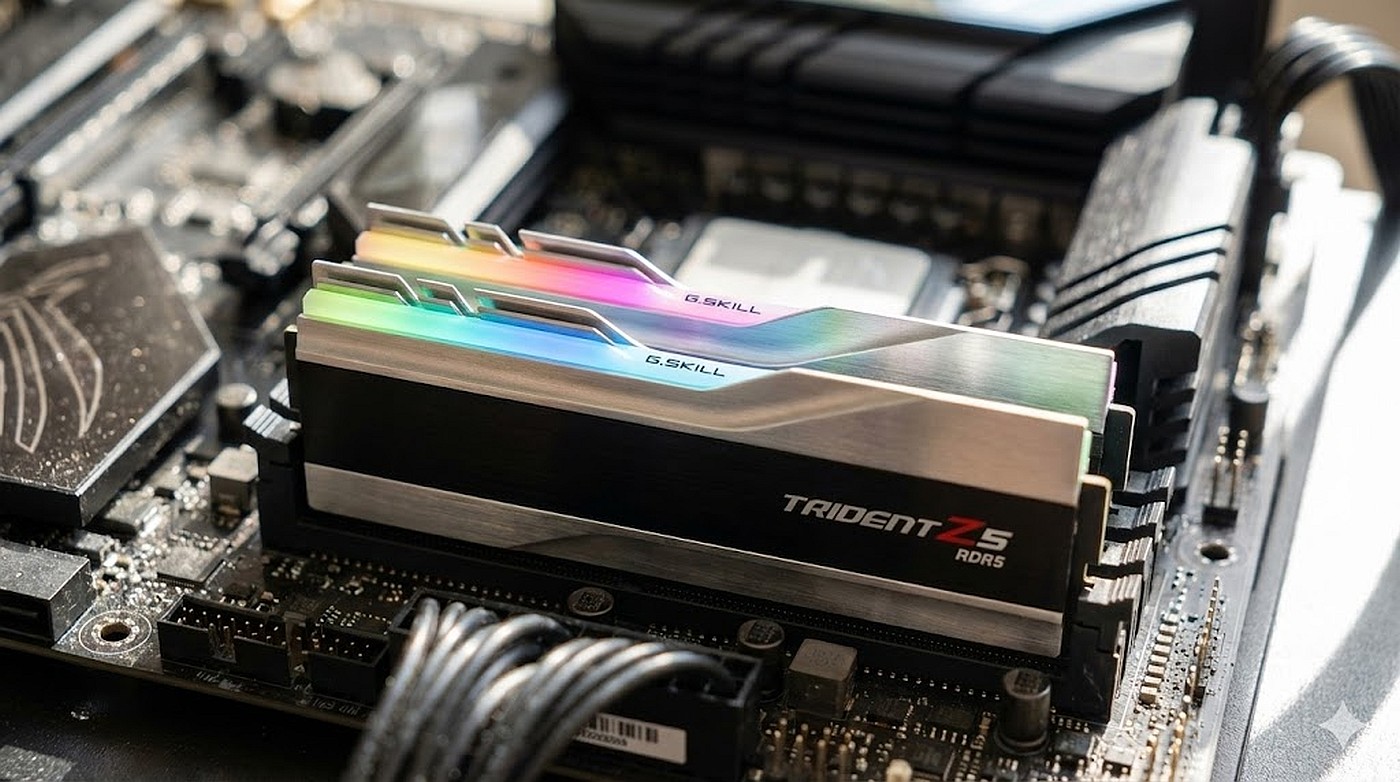

Prognose RAM 2026 Die Hardware Community F R PC Spieler PCGH Extreme Ram Preise 2026 . Is 32GB RAM Becoming The New PC Standard By 2026 PC Hardware Trends 3 Random Access Memories . Get Your PC 2026 Ready With These 9 Key Upgrades PCWorld Dual Channel RAM Auf Einem Mainboard . 12 Best Business Desktop Computers In 2026 Tested Reviewed Best DDR5 RAM For Gaming . RAM Prices 2026 Why They Are Rising When To Buy Unnamed 1


Le Migliori RAM Del 2026 TechRadar . Forget What You Heard There S Plenty Of PC Hardware To Be Excited . Ram 1500 Canyon Lake Color 2026 What Is Ram And How Does It Affect Your Ram 2 . RANAXPLAY RAM Prices 2026 Forecast Why AI Is Increasing Costs The J3AEW6iSHKS S8 . Rising RAM Prices Expected To Increase Technology Costs By 2026 Featured Cover Rising RAM Prices Expected To Increase Technology Costs By 2026


Best RAM Deals 2026 Last Minute RAM Savings To Beat The Price Crunch . RAM Reality Check How Much Memory Does Your PC Actually Need In 2026 11.fit Lim.size . 7 Best DDR4 RAM For Gaming Video Editing On Desktop PC 2026 . Classifica Memorie RAM 2026 Quale RAM Scegliere Senetic Ram Cover Photo 1 1024x683 . The Best RAM For Gaming In 2026 Performance Prices And The RAM Best RAM In 2026 1


Best PC Builds For Gaming 2026 From 500 Budgets To 4 000 Tom S . Ile RAM Potrzebuje PC W 2026 Roku Du O Si Zmieni O W Ostatnich Latach Ile Ram W 2026 1280x853 . Mejores Memorias RAM 2026 Gu A Para No Fallar En Tu PC Mejores Ram 2026 . Bester RAM 2026 Die 10 St Rksten Kits F R Gaming Creator Blog Der Beste RAM 2026 300x169 . 6 Best Desktop Computers 2026 YouTube


RAM Reality Check How Much Memory Does Your PC Actually Need In 2026 2 . 5 Best Desktop Computers With Large RAM 2026 Best Mamba Expert Best Desktop Computers With 64GB RAM . Desktop PC Upgrade Guide 2026 Maximize Performance Save Money . Intel Reportedly Ready To Announce Three New Core Ultra Desktop CPUs At RAM Sale Japanese Store . Top 10 Best Desktop Computers 2026 For Home Office And Work Lenovo Legion Tower 5i 2026 Budget Desktop Computer For Home Office Among Best Desktop




Top 10 Best Desktop Computers 2026 For Home Office And Work Lenovo Legion Tower 7i 2026 High Performance Desktop Computer With RGB Lighting Featured In. Micron Says No Relief For Memory In 2026 PC RAM Prices To Rise RAM Prices 1280x646 . Top 10 Best Desktop Computers 2026 For Home Office And Work HP OmniStudio X Pro 2026 All In One Desktop Computer With Large Display Ranked Among Best. 2026 Ram 2500 Price Specs Pros Cons 2026 Ram 2500 2. Top 10 Best Desktop Computers 2026 For Home Office And Work Apple IMac M4 2026 All In One Desktop Computer For Creative In Best Desktop


Computer Ram . 12 Best DDR5 RAM For Gaming In 2026 Tested Reviewed Slide4 1024x576 . Why Desktop PC Prices Are Rising In 2026 And How To Still Get A Good Deal New Year Desktop PC Deals 2026 Main . Is 16GB RAM Enough For Gaming In 2026 The Truth You Need To Know Blogs 16gb Ram 2026 . The 15 Best Gaming PC In 2026 Tested Reviewed Com Best High Speed RAM Kits For 4K Video Editing