Adding friends in Roblox is a crucial aspect of the gaming experience especially for adults balancing work and play This comprehensive guide will walk you through every step from finding friends by username to accepting requests and managing your social circle in the game Discover why connecting with others enhances your Roblox journey whether youre seeking a quick social fix after a long day or building a persistent gaming community We address common challenges and provide practical solutions ensuring you can effortlessly link up with fellow players across various platforms Roblox thrives on social interaction and understanding how to effectively grow your friend list can significantly improve your enjoyment and collaboration Dive into tips for privacy settings and troubleshooting making your social gaming seamless and stress free This resource is tailored for busy gamers who value efficiency and fun in their digital escapes helping you stay connected without the hassle
How do I find a friend's Roblox username if I only know their real name?
Finding a friend's Roblox username when you only know their real name can be tricky since Roblox prioritizes in-game aliases. Your best bet is to ask them directly outside of Roblox, perhaps through a text message or another social media platform. Roblox usernames are unique and often differ from real names. If that's not possible, try to recall any specific games you might have played together; sometimes, you can search recent players within those games. Additionally, if you have mutual friends on Roblox, they might be able to help you locate the person's profile by sharing their username.
What are the privacy implications of adding friends in Roblox?
Adding friends in Roblox opens up various social interactions, but it's important to understand the privacy implications. Friends can typically see your online status, which games you're playing, and can join your game sessions if your settings allow. They can also send you direct messages. Roblox provides robust privacy settings under your 'Account Settings' to manage 'Who can send me messages,' 'Who can chat with me in-game,' and 'Who can join me in-game.' Adjusting these settings lets you control the level of interaction and visibility you have with your friends, ensuring a comfortable and secure experience, especially for busy adults who value their online boundaries.
Why would my friend request not be showing up for the other person?
There are a few common reasons why a friend request might not appear for the intended recipient. Firstly, double-check that you entered their username correctly; even a small typo or incorrect capitalization will send the request to a non-existent user or someone else entirely. Secondly, the recipient's privacy settings might be preventing them from receiving requests from 'Everyone.' They might need to adjust their 'Who can send me friend requests?' setting to 'Everyone' or 'Friends of Friends' if you have mutual connections. Lastly, if either of you has a full friend list (200 friends), new requests cannot be processed. It's always a good idea to confirm the username and have the other player check their privacy settings and friend count.
Is there a way to quickly add multiple friends at once on Roblox?
Unfortunately, Roblox does not currently offer a feature to quickly add multiple friends simultaneously. The process of sending friend requests is designed to be one-on-one, requiring you to search for each player by their unique username and send individual requests. This manual approach helps maintain user privacy and prevents spamming. While this might seem slower for groups, it ensures intentional connections. For large groups, coordinating through a Roblox group or a private server in a game is often a more efficient way to play together without needing to be friends with everyone individually.
How can I organize my Roblox friend list for easier management?
Currently, Roblox does not offer advanced organizational features for your friend list, such as custom folders or tags. Your friends are typically listed alphabetically or by their online status. To manage your list more effectively, you can periodically review it and unfriend inactive accounts or players you no longer interact with. If you play specific games with certain groups, consider creating a Roblox Group for that community; this allows you to communicate and gather easily without overloading your personal friend list. For busy adult gamers, keeping a streamlined friend list with active connections enhances the social experience without unnecessary digital clutter.
What happens if I try to add a friend who has blocked me on Roblox?
If you attempt to send a friend request to a player who has blocked you on Roblox, the request will simply not go through, and you will likely receive an error message indicating that you cannot send them a request or interact with their profile. Roblox's blocking feature is designed to completely prevent communication and interaction between the two accounts. It's a robust privacy tool that ensures the blocked user cannot see your activity, send you messages, or send you friend requests. There will be no notification sent to the person who blocked you about your attempt to add them, maintaining their privacy and space.
Can I send a friend request to someone who is offline on Roblox?
Yes, you can absolutely send a friend request to someone who is currently offline on Roblox. The process is the same as adding an online player: simply search for their exact username on the Roblox website or app and click the 'Add Friend' button on their profile. The request will be sent and will appear in their pending requests queue for when they next log in. They will receive a notification upon logging in, allowing them to accept or decline it at their convenience. This ensures you can initiate connections whenever you remember, without needing your friends to be online simultaneously, perfect for coordinating playtimes around busy schedules.
For many adult gamers, Roblox isn't just a platform for the younger crowd; it's a vibrant, ever-expanding universe offering relaxation, creative outlets, and most importantly, social connection. In the whirlwind of balancing work, family, and personal life, carving out time for gaming means making the most of every minute. And what’s more rewarding than sharing those moments with friends? You’re not alone if you find yourself logging into Roblox after a long day, hoping to team up with buddies or meet new players in an engaging experience. After all, recent US gaming stats show that roughly 87% of adult gamers regularly engage, often spending 10 or more hours a week across various platforms, with social gaming trends continuing to dominate. Connecting with others is at the core of this experience, especially on platforms like Roblox where mobile play reigns supreme for many busy individuals on the go. This guide cuts through the noise, offering clear, actionable steps on how to add people in Roblox, troubleshoot common hiccups, and optimize your social experience. We’ll empower you to build your in-game community effortlessly, ensuring your precious gaming time is spent having fun, not fumbling with menus.
You’re looking for straightforward solutions to enhance your playtime, and we’re here to deliver. Whether you’re trying to find a long-lost friend’s username, send a request from within an active game, or understand the nuances of privacy settings, this comprehensive Q&A will equip you with all the knowledge you need. Let’s dive into mastering the art of social connections in Roblox, making sure every gaming session is as enjoyable and connected as possible.
What is the Easiest Way to Add Friends in Roblox?
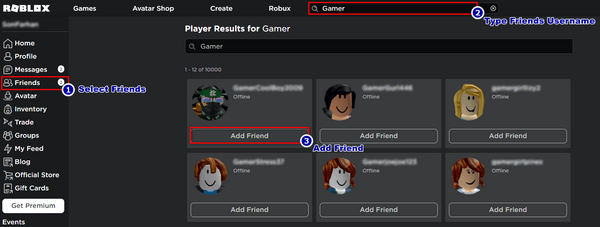
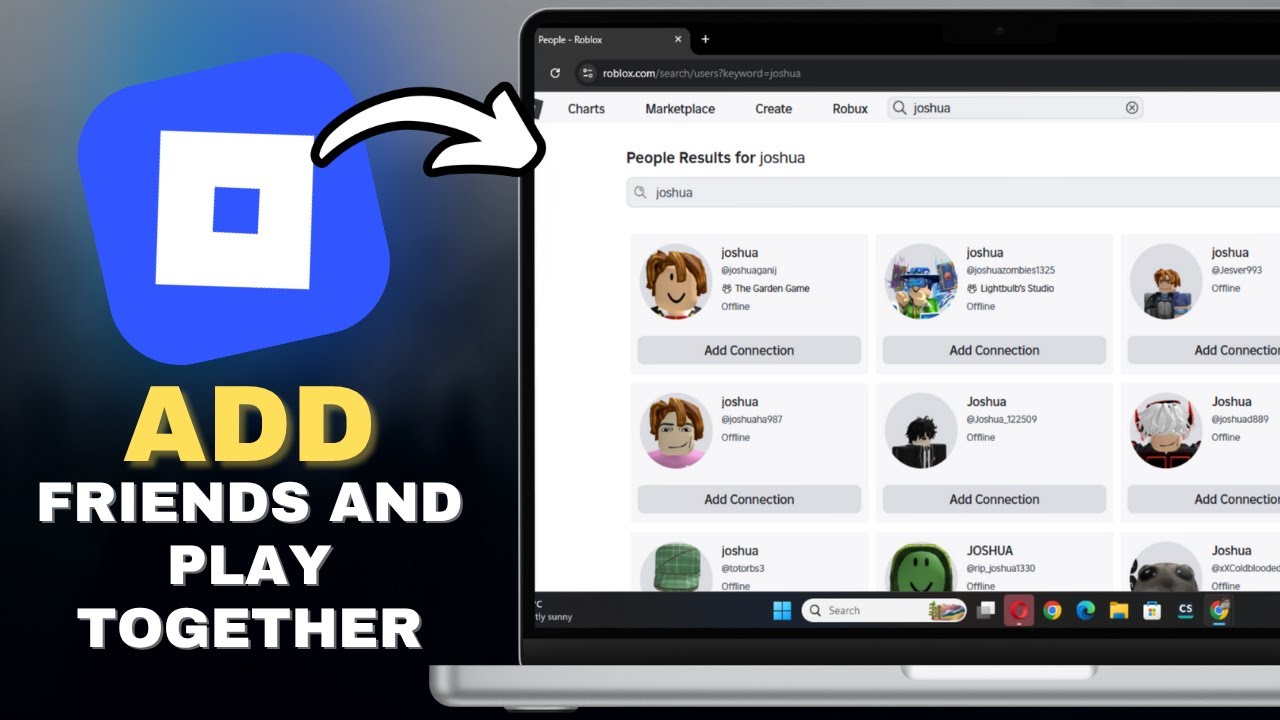
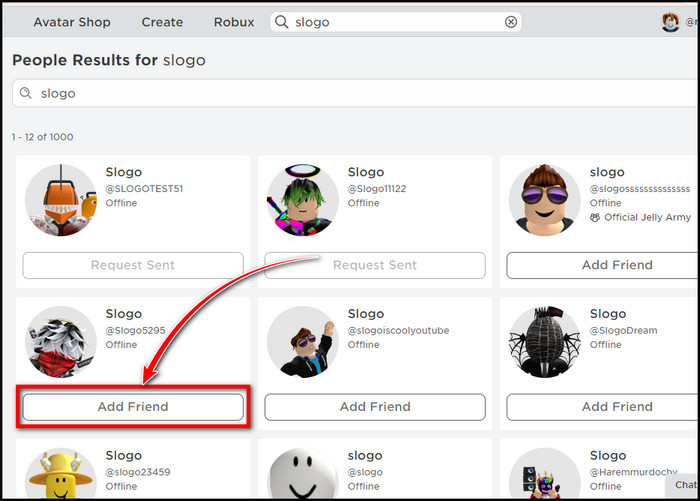
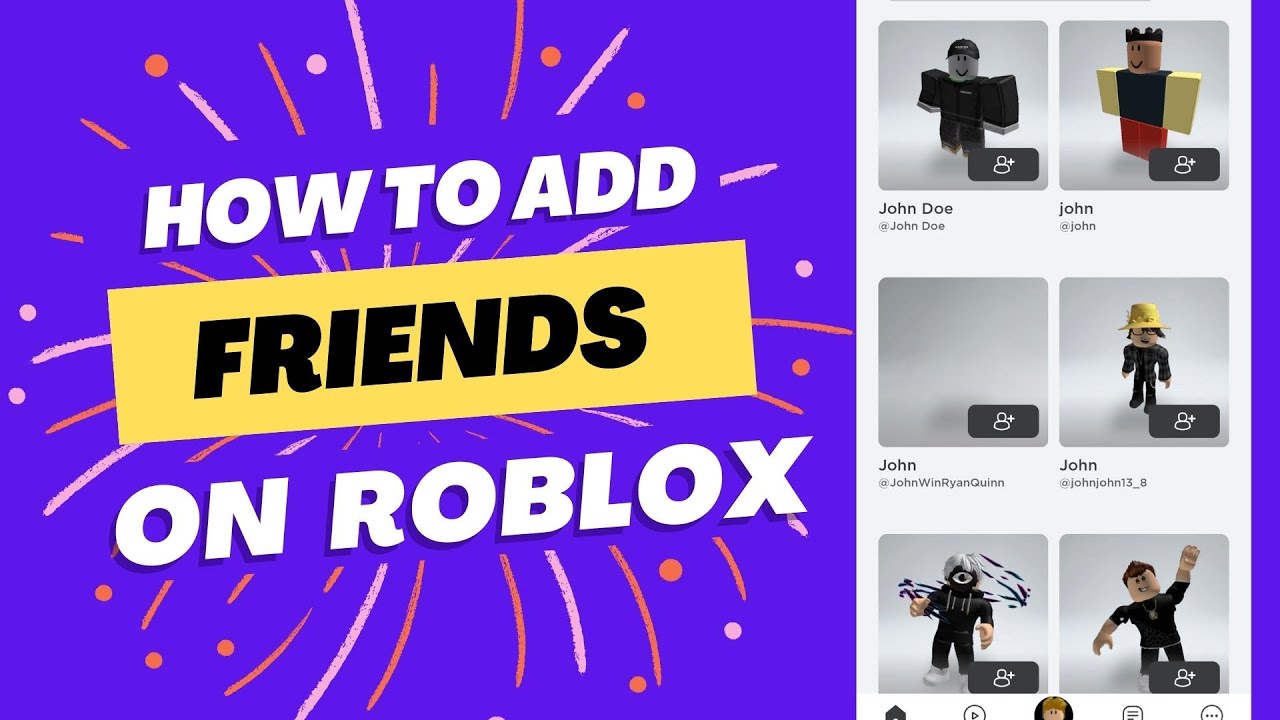
The most straightforward method to add friends in Roblox is by using their exact username. This works across all platforms, whether you're on PC, mobile, or console. Navigating to the Friends section of the Roblox website or app, then using the search bar, is your first stop. Type their username carefully to ensure accuracy; Roblox usernames are case-sensitive and unique. Once you find their profile, a simple click on the 'Add Friend' button sends a request directly to them. This approach is highly reliable and is usually the quickest way to initiate a connection, especially if you already know the person's exact handle. It bypasses any in-game distractions, getting you straight to the point.
How Do I Send a Friend Request From Inside a Roblox Game?
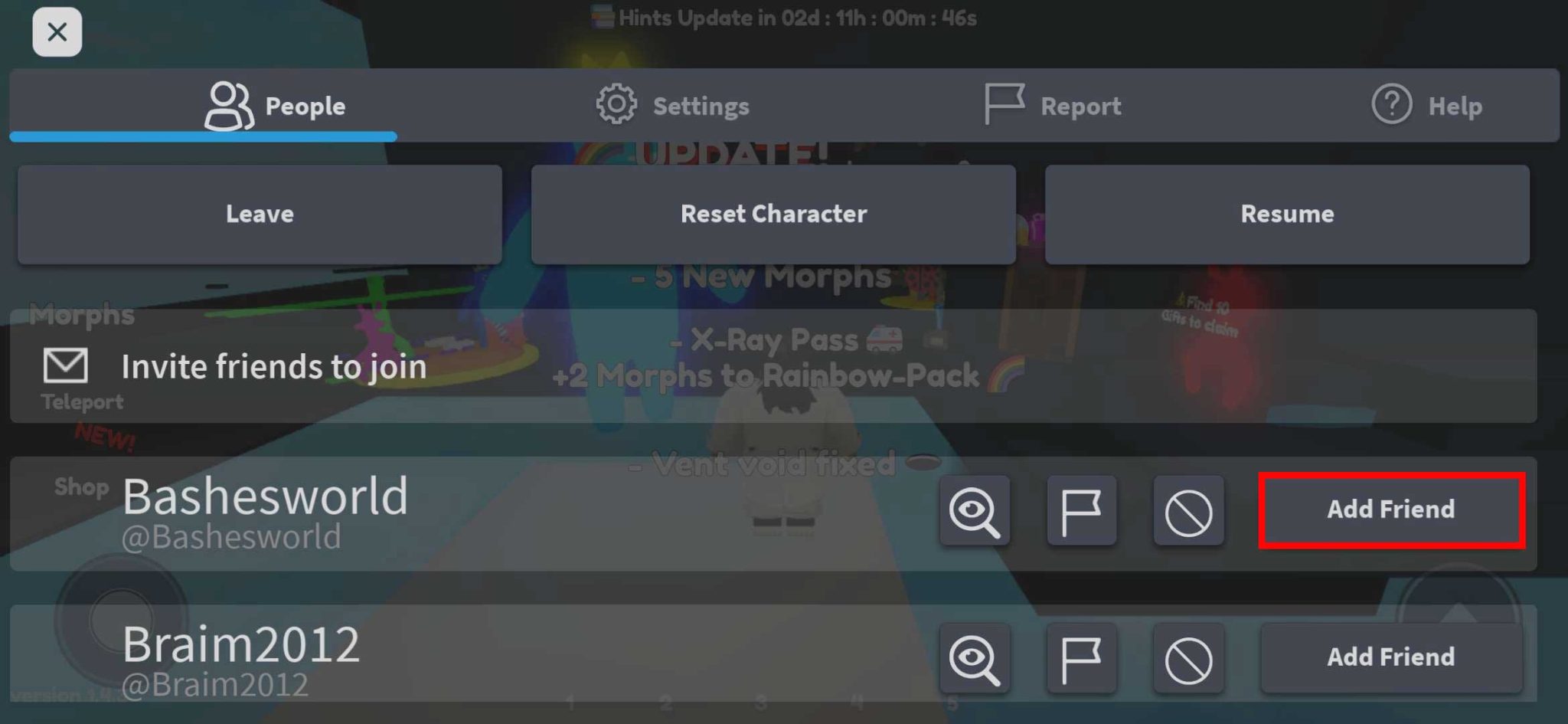
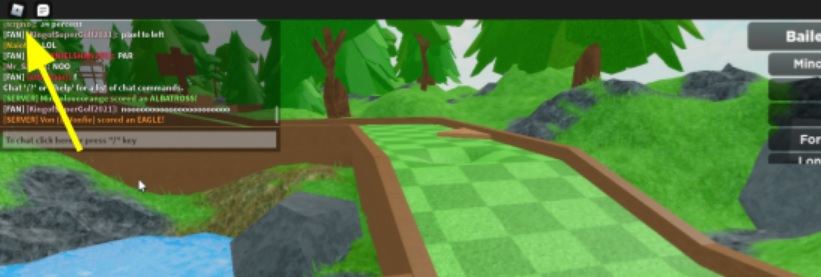
Adding friends while you're in the middle of an exciting game is incredibly convenient. Many games offer an in-game player list, often accessible via a leaderboard or a dedicated social menu. You can typically click on a player's name in this list to view their profile or send a friend request directly. Alternatively, if a player is nearby in the game world, some experiences allow you to interact with them to bring up a context menu that includes 'Add Friend.' This seamless integration means you don't have to interrupt your gameplay flow. It’s perfect for those moments when you click with someone in a game and want to keep playing together later. This feature truly enhances the spontaneous social interactions that make Roblox so dynamic for its diverse player base.
What Happens After I Send a Friend Request and How Do I Accept One?
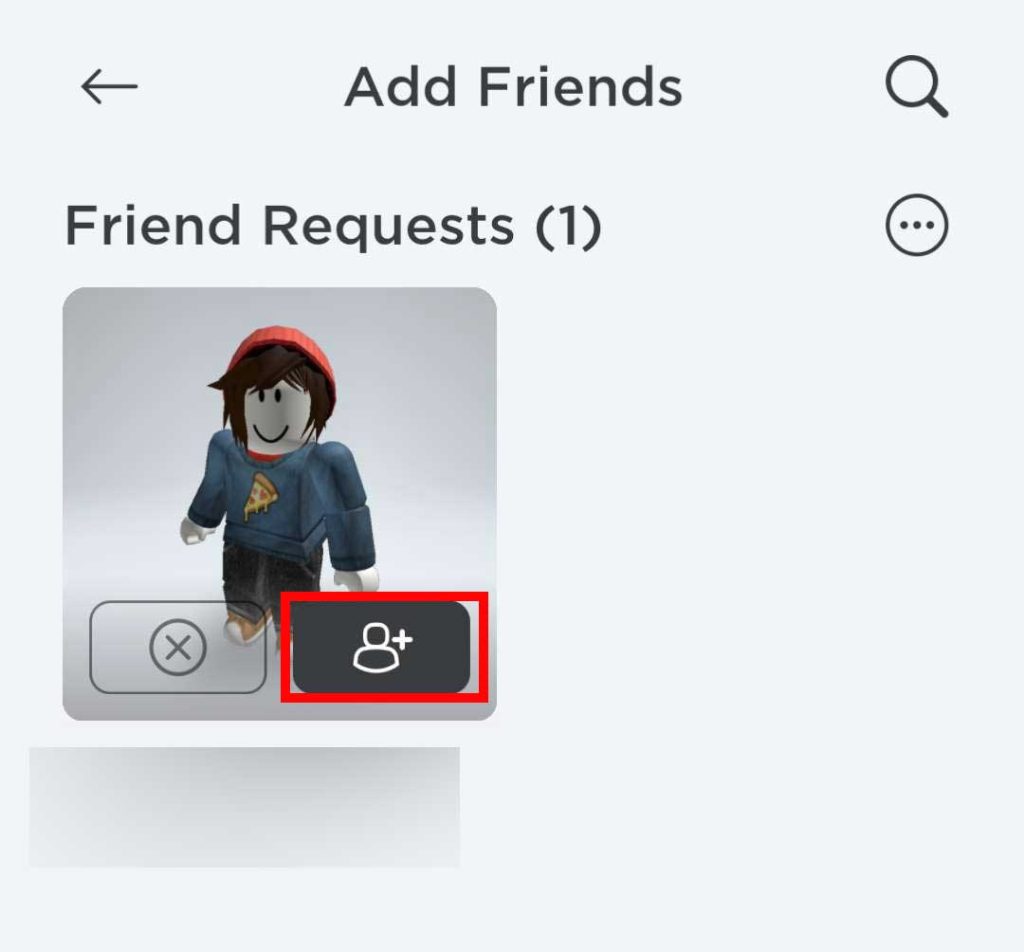
Once you send a friend request, the ball is in the other player's court. They will receive a notification, usually visible in their Friends section or via an in-game pop-up if they are currently playing. To accept a friend request, navigate to the 'Friends' tab on the Roblox website or app. Here, you'll find a 'Requests' sub-section where all pending requests are listed. You can then choose to 'Accept' or 'Decline' each one. Accepting a request instantly adds that player to your friend list, and you'll appear on theirs. This simple two-step process ensures both parties consent to the connection, maintaining a respectful and secure social environment. It's a quick way to expand your network and start playing together.
Can I Add Friends Across Different Devices or Platforms in Roblox?
Absolutely, yes! One of Roblox's greatest strengths for its adult player base, who often juggle gaming on various devices, is its robust cross-platform functionality. Whether you're playing on a PC, Mac, iOS or Android mobile device, Xbox console, or even certain VR headsets, you can add friends and play together seamlessly. The Roblox platform ensures that your friend list and game progress are linked to your account, not the device you're using. This means a friend on their phone can easily connect with you on your PC, or vice versa, using the exact same methods outlined above. This month’s trends continue to highlight the importance of mobile gaming, with many US gamers utilizing their phones for quick, accessible sessions. This cross-platform capability means you're never restricted by hardware when it comes to connecting with your gaming buddies, making it ideal for busy schedules.
How Can I Manage My Roblox Friend List and Unfriend Someone?
Managing your friend list in Roblox is straightforward and important for maintaining a positive social experience. To view and manage your friends, go to the 'Friends' section of the Roblox website or app. Here, you'll see a list of all your current friends. You can click on any friend's name to visit their profile. If you wish to unfriend someone, simply go to their profile page, and you'll find an 'Unfriend' button prominently displayed. Clicking this will remove them from your friend list instantly. There’s no notification sent to the other player when you unfriend them, allowing for a discreet process. Regularly managing your friend list ensures it remains relevant and filled with people you genuinely enjoy playing with, which is key for those seeking quality social interactions during their limited gaming time.
What Privacy Settings Should I Know About for Roblox Friend Requests?
Roblox offers several important privacy settings that empower you to control who can send you friend requests, a crucial feature for any gamer prioritizing their online experience. You can access these settings by navigating to your Account Settings and then selecting the 'Privacy' tab. Under 'Who can send me friend requests?', you typically have options like 'Everyone,' 'Friends of Friends,' or 'No One.' For adult gamers, especially those looking to limit unsolicited requests, setting this to 'Friends of Friends' or even 'No One' can be beneficial. This ensures you only receive requests from people you likely already know or have a connection with, or none at all if you prefer to initiate all requests yourself. Regularly reviewing these settings helps you maintain a comfortable and secure social environment within Roblox, allowing you to game with peace of mind without worrying about unwanted interruptions.
Why is Socializing in Roblox Important for Busy Gamers?
For adult gamers, Roblox isn't just about escaping reality; it's a valuable platform for connection and relaxation. Socializing in Roblox provides a unique avenue for stress relief, allowing you to unwind with friends in a low-stakes environment after a demanding day. Whether it's collaborating on a build, exploring new worlds, or just chatting in a virtual space, these interactions foster a sense of community and belonging. For those balancing careers and families, gaming with friends offers a convenient way to maintain social ties without the logistical challenges of in-person meetups. It's also an excellent way to keep your mind active, build teamwork skills, and even discover new experiences recommended by trusted contacts. In a gaming landscape where social engagement is paramount, connecting with others in Roblox enhances both fun and personal well-being, transforming short play sessions into meaningful interactions.
Troubleshooting Common Issues When Adding Friends in Roblox
Even with the most straightforward systems, occasional hiccups can occur when trying to add friends in Roblox. Here are some common issues and their solutions:
Incorrect Username: The most frequent problem. Double-check the spelling and capitalization of the username. Roblox usernames are case-sensitive and must be exact.
Player's Privacy Settings: If you can't send a request, the other player might have their privacy settings configured to prevent friend requests from 'Everyone.' They might need to adjust their 'Who can send me friend requests?' setting to 'Everyone' or 'Friends of Friends' if you share mutual connections.
Friend List Full: Roblox has a friend limit (currently 200). If either you or the person you're trying to add has a full friend list, the request won't go through. One of you will need to unfriend some inactive accounts.
Internet Connection Issues: A spotty internet connection can prevent requests from sending or receiving. Ensure you have a stable connection.
Roblox Server Issues: Rarely, Roblox itself might experience server issues. Check the official Roblox Status page or social media for any widespread problems.
Pending Requests Limit: While less common, there might be a limit to how many outgoing friend requests you can have pending at once. Clearing old, unaccepted requests might help.
By systematically checking these points, you can usually resolve any issues you encounter, ensuring your social gaming experience remains smooth and enjoyable.
Connecting with people in Roblox genuinely enriches your gaming life. From unwinding with colleagues after work to exploring new worlds with family, the ability to effortlessly add friends is key. We’ve covered everything from the basic steps and in-game requests to privacy settings and troubleshooting, all designed to make your social experience as seamless as possible. Remember, gaming is often more fun when shared, and Roblox provides an incredible platform for those connections. So, dive in, add your friends, and build your community!
What’s your biggest gaming challenge when it comes to connecting with others online? Comment below!
FAQ Section
Q: Can I add friends on Roblox if I only know their display name?
A: No, you need their exact username to send a friend request. Display names are cosmetic and not unique, so always ask for the player's unique username for friending.
Q: How many friends can I have on Roblox?
A: Currently, a Roblox account can have up to 200 friends on their friend list. If you reach this limit, you'll need to remove some friends before adding new ones.
Q: What is the difference between following and friending on Roblox?
A: Friending is a mutual connection, allowing both players to see each other's online status and join their games. Following is one-sided; you can see what a player is doing, but they don't necessarily follow you back or see your activity. Following is often for creators or public figures.
Q: How do I know if someone has accepted my friend request?
A: You will receive a notification in Roblox when someone accepts your friend request. Additionally, they will appear on your 'Friends' list, and their profile will show them as a 'Friend.'
Q: Is it safe to add strangers on Roblox?
A: While Roblox has safety features, exercising caution when adding strangers is always recommended. Only accept requests from people you've interacted with positively in-game or feel comfortable connecting with. Utilize privacy settings to control who can contact you.
Q: Can I block someone who is bothering me on Roblox instead of just unfriending?
A: Yes, you can block a player on Roblox. Blocking prevents them from contacting you, sending you messages, or joining your games, offering a stronger barrier than just unfriending. This option is available on a user's profile page.
Effortless Roblox friend adding, In-game friend requests, Cross-platform social play, Managing friend lists easily, Roblox privacy settings explained, Troubleshooting friend issues, Benefits of social gaming in Roblox for busy adults, Quick guide to connecting with players
35


How To Add People Roblox Easily Your 2026 Guide How To Add Friends On. How To Add Someone To Team Create Roblox Full Guide YouTube . How To Add People Roblox Easily Your 2026 Guide V4 460px Add Friends On Roblox Step 4 . How To Add People Roblox Easily Your 2026 Guide Roblox How To Add Friends 13 1024x389 . How To Add People Roblox Easily Your 2026 Guide Add A Friend In Game 1 2048x945


How To Add People Roblox Easily Your 2026 Guide Add Friend Icon 1024x952 . How To Add People Roblox Easily Your 2026 Guide Add Friend Roblox Xbox . How To Add Friends In Roblox Roblox How To Add Friends 8 1 466x320 . How To Add People Roblox Easily Your 2026 Guide V4 460px Add Friends On Roblox Step 11 . How To Add People Roblox Easily Your 2026 Guide Add Friends Roblox


How To ADD FRIENDS In Roblox And PLAY Together In SECONDS YouTube . How To Add People Roblox Easily Your 2026 Guide Roblox Pc Add Friends . How To Add Friends On Roblox Tutorial YouTube . How To Add Someone To Team Create In Roblox Studio 2026 Invite . How To Create A Group On Roblox 2026 Make Roblox Group YouTube


How To Add Friends On Roblox Quick And Easy YouTube . How To Add Friends On Roblox 2026 YouTube Hqdefault . HOW TO ADD FRIENDS ON ROBLOX YouTube . How To ADD Trusted Connections On Roblox 2026 How To Add Friends In 800x450. How To Add People Roblox Easily Your 2026 Guide


How To Add Friends On Roblox PC And Console V4 460px Add Friends On Roblox Step 6 . How To Add A Roblox Card To Your Account In 2026 . How To Add Friends On Roblox PC And Console V4 460px Add Friends On Roblox Step 7 . How To Add People Roblox Easily Your 2026 Guide . How To Add Friends On Roblox 2026 YouTube




How To Add Friends On Roblox PC And Console V4 460px Add Friends On Roblox Step 3 . How To Add Connections And Players In Roblox YouTube . How To Add People To Help Them Build In Roblox Studio YouTube Hqdefault . How To Add People Roblox Easily Your 2026 Guide . How To Add People As Trusted Connections On Roblox How To Add Trusted Connections On Roblox Fast.webp



How To Add Friends In Roblox In 2026 Complete New Guide The Droid Guy. How To Add Friends In Roblox Add Your Friends Roblox Guide YouTube . How To Add A Roblox Card To Your Account In 2026 Checkout Option For Roblox Gift Carde . How To Add Friends On Roblox PC And Console V4 460px Add Friends On Roblox Step 5 . How To Publish A Game On Roblox In 2026 Roblox YouTube