Many gamers love YouTube for its vast content but sometimes you need a digital detox or a way to manage screen time especially when gaming channels become a distraction. With 87 percent of US gamers spending an average of 10 plus hours a week on their favorite titles balancing entertainment with productivity is crucial. This comprehensive guide provides step by step instructions on how to block gaming channels on YouTube effectively in 2026 helping you regain control over your feed and focus on what truly matters. Whether you are an adult balancing work and play or a parent managing a childs viewing habits learning these methods will transform your YouTube experience. We cover browser extensions YouTube native features and even router level solutions. Discover practical tips to curate your digital environment minimize unwanted recommendations and create a more focused online space. Stay ahead of content overload with these trending strategies.
How do I stop YouTube from recommending gaming videos to me
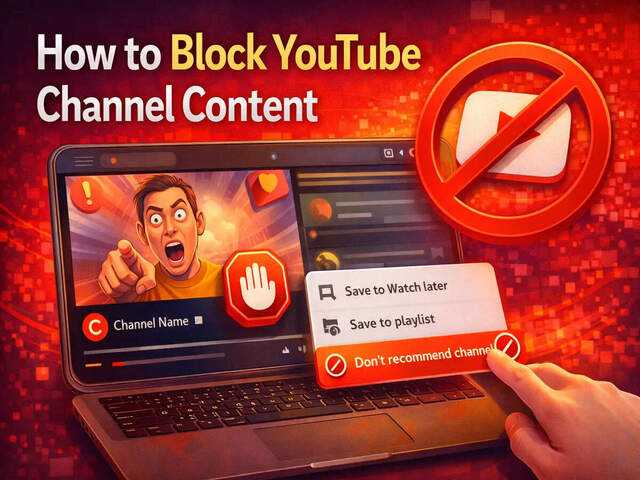
To stop YouTube from recommending gaming videos consistently use the 'Do not recommend channel' feature. When you see a gaming video you want to avoid click the three dots next to its title and select 'Do not recommend channel'. Repeat this for several gaming channels and YouTube's algorithm will gradually learn to show you less gaming content. You can also clear your watch history of gaming videos to reset recommendations.
Is there a way to permanently block a YouTube channel from my feed
While there is no single 'permanent block' button that removes a channel from all future recommendations and search results a combination of methods works. Consistently using 'Do not recommend channel' is key. For a more robust solution browser extensions like BlockTube allow you to explicitly block channels by name ensuring their videos rarely appear in your browsing experience.
Can I filter YouTube content by keywords to block gaming topics
YouTube's native features primarily focus on blocking entire channels. However several browser extensions such as Video Blocker for YouTube enable you to filter content by keywords. This means you can specify terms like 'Fortnite' 'Minecraft' or 'esports' to block videos containing these keywords from appearing in your feed and search results.
Do YouTube parental controls help block gaming channels
Yes YouTube's built in parental controls especially through YouTube Kids or by managing a child's account via Google Family Link can effectively limit exposure to gaming content. You can set content filters approve specific channels or even restrict app usage which helps ensure a safer and less distracting viewing environment for younger users.
What is the most effective method for blocking gaming content on YouTube for adults
For adults the most effective method is a multi layered approach. Start with consistently using YouTube's 'Do not recommend channel' option. Complement this with a powerful browser extension like Unhook or BlockTube which provides deeper customization and content filtering. For network wide control consider router level DNS filtering services.
How can I prevent gaming videos from appearing on my YouTube mobile app
On the YouTube mobile app you can utilize the 'Do not recommend channel' feature by tapping the three dots next to a video thumbnail. This action syncs across devices. Additionally you can use your phone's built in screen time or digital wellbeing settings to limit overall YouTube app usage thereby reducing exposure to all content including gaming videos.
Will clearing my YouTube watch history remove all gaming recommendations
Clearing your YouTube watch history is a good way to reset your recommendation algorithm. If your history is full of gaming videos removing them will tell YouTube you are no longer interested in that content. However the algorithm also considers other factors like trending videos. For a complete block combine history clearing with 'Do not recommend channel' actions.
Ever find yourself sucked into a YouTube gaming rabbit hole when you should be crushing that work project or spending time with family. You are not alone. In 2026 US gamers represent a massive demographic with 87 percent actively playing and many averaging over 10 hours a week on their favorite titles. While gaming offers fantastic escapism and social connection balancing it with daily responsibilities can be tough. The algorithm constantly pushing more gaming content does not help. If you are looking for effective ways how to block gaming channels on YouTube and reclaim your focus this guide is for you. Think of me as your trusted gaming friend ready to share some pro tips for digital wellbeing.
How to Block Gaming Channels on YouTube Directly Using Native Features
YouTube offers several built-in methods to manage unwanted gaming recommendations and content. These methods are simple and work across most devices.
- Do Not Recommend Channel Option: This is your primary weapon.
- When a gaming video or channel recommendation appears on your homepage or in your Up Next queue hover over its thumbnail.
- Click the three vertical dots menu icon that appears.
- Select "Do not recommend channel" or "Not interested" if that option is available. This tells YouTube to show you less content from that specific channel or type of video.
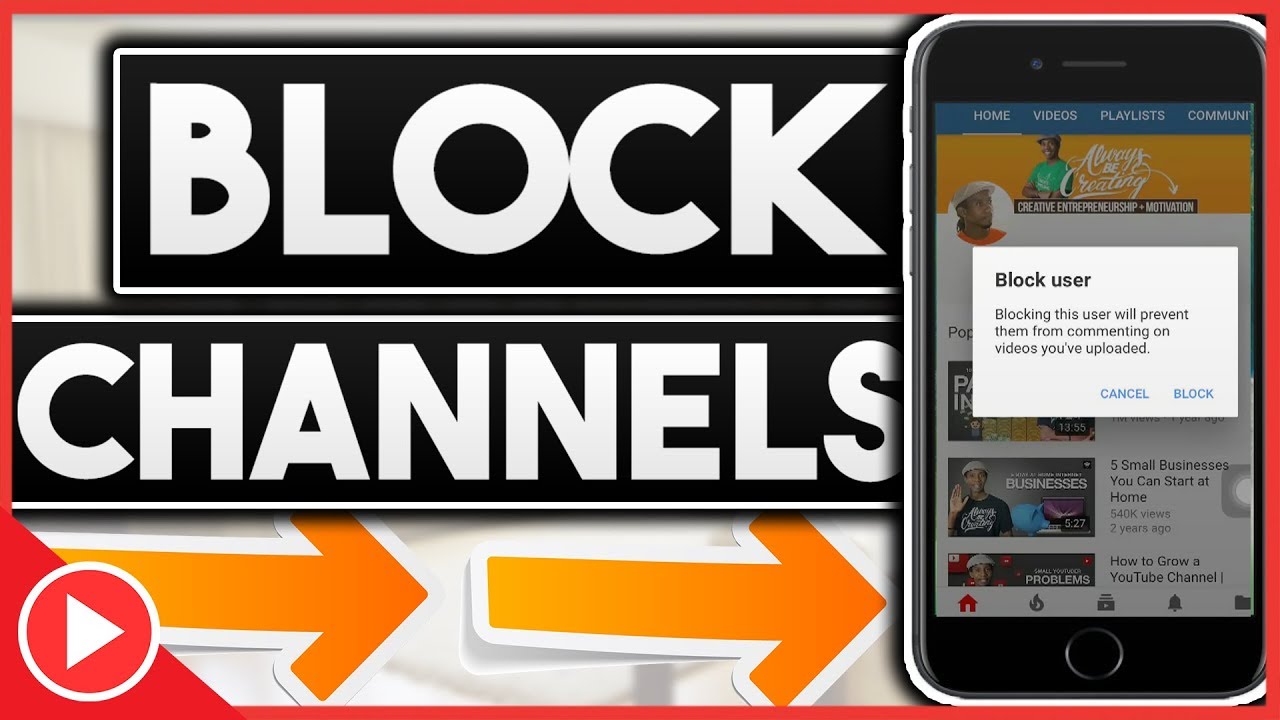
- Blocking Users: While you cannot "block" a channel from appearing in recommendations through a direct block feature you can block specific users. This prevents them from commenting on your videos and seeing your activity. It does not prevent their content from being recommended to you directly. To block a user go to their channel page click the three dots icon next to their channel name and select "Block user". This is more about community management than content filtering.
- Clearing Watch History and Pausing History: YouTube uses your watch history to personalize recommendations. If you have watched a lot of gaming content your recommendations will reflect that.
- Go to your YouTube History via the left sidebar.
- Click "Manage all history".
- You can pause your Watch History to prevent new videos from influencing recommendations. You can also delete specific gaming videos or even your entire watch history.
Why Would a Busy Adult Gamer Need to Block Gaming Channels on YouTube
It is not about hating gaming. It is about control and focus. For many Gen Z and Millennial gamers who balance demanding careers social lives and sometimes families YouTube can be a massive time sink. Social gaming is huge with Discord communities thriving and cross play making it easier than ever to connect. But endless video consumption can derail productivity.
- Digital Detox and Focus: You need to concentrate on work studies or a creative project. The constant stream of new game trailers esports highlights or streamer drama can be incredibly distracting. Blocking channels helps create a cleaner digital workspace.
- Managing Screen Time: US adults aged 20 45 often find themselves struggling to manage screen time especially after a long day. Blocking channels can help reduce passive consumption making your online time more intentional.
- Parental Guidance: For parents who game YouTube Kids offers better filtering but for older kids or shared family accounts blocking specific channels ensures children are not exposed to mature content or excessive gaming content that might interfere with school or sleep.
- Overcoming Addiction Tendencies: If gaming content becomes an unhealthy obsession reducing its visibility can be a crucial step towards healthier digital habits.
What Browser Extensions Can Help Block YouTube Gaming Content Effectively
Browser extensions offer powerful and often more comprehensive ways how to block gaming channels on YouTube than native options.
- Unhook Remove YouTube Recommended Videos: This popular Chrome and Firefox extension allows you to customize your YouTube experience drastically. You can hide the homepage feed recommendations comments sidebar suggested videos and even trending sections. While not specifically for "gaming" it effectively removes all algorithmic distractions making YouTube a tool for specific searches rather than endless browsing.
- BlockTube: Available for Chrome and Firefox BlockTube is a direct channel blocker. You can input channel names or keywords and it will prevent videos matching those criteria from appearing in your feed search results or sidebar. This is ideal for targeting specific gaming creators or topics.
- Video Blocker for YouTube: Another robust option this extension lets you block videos by channel title or keyword. It is highly customizable and can make a significant difference in cleaning up your YouTube feed from unwanted gaming content.
Installation is typically simple. Visit your browser's extension store search for the desired blocker and click "Add to Chrome" or "Add to Firefox". Once installed you can usually configure its settings from your browser's extension menu.
Is There a Way to Block Gaming Channels on Mobile YouTube Apps
Blocking on mobile is a bit trickier as dedicated browser extensions do not apply directly to native apps. However you still have options.
- Use the "Do Not Recommend Channel" Feature: This works the same way as on desktop. Tap the three dots next to a video thumbnail and select "Do not recommend channel". This syncs across devices so if you block a channel on your phone it will also be blocked on your desktop.
- Utilize YouTube Kids App: For younger viewers YouTube Kids offers a curated environment with more stringent parental controls. You can hand pick channels or categories allowed.
- Mobile OS Screen Time Settings: Both iOS and Android offer built-in screen time or digital wellbeing features. You can set daily limits for the YouTube app or specific categories effectively curbing overall usage which naturally reduces exposure to gaming content.
- Third Party DNS Filtering: Services like NextDNS or OpenDNS can block entire categories of websites or content across all devices connected to your home network including mobile phones. This is a more advanced solution but highly effective.
When Is It Best to Implement These YouTube Gaming Blocking Strategies
Timing can be everything for digital habits.
- During Work or Study Hours: Set up your blockers before you start your productive blocks. This prevents unconscious browsing.
- When Starting a Digital Detox: If you are actively trying to reduce screen time or combat a feeling of digital overload implementing these blocks can be a strong first step.
- For Specific Devices: You might want YouTube to be completely clean on your work laptop but allow more recommendations on your personal tablet for casual viewing. Customize your approach per device.
- As Part of Parental Control Setup: Before handing a device to a child or setting up their own account ensure these blocks are in place to guide their content consumption.
Who Benefits Most from Learning How to Block Gaming Channels on YouTube
Anyone seeking greater digital autonomy and focus stands to gain.
- The Overwhelmed Professional: Balancing a career with hobbies is tough. These tools provide a clear boundary.
- The Student: Avoiding distractions is critical for academic success.
- The Conscious Parent: Ensuring a balanced media diet for their children.
- The Gamer Seeking Balance: Even passionate gamers sometimes need a break from constant immersion to focus on other aspects of life or explore new hobbies. Trends like cozy games or free to play titles are popular this month offering casual enjoyment without the constant content push.
Where Can You Find More Advanced Blocking Options Beyond YouTube Itself
For a truly comprehensive content filter consider network level solutions.
- Router Level DNS Filtering: Many modern routers allow you to configure custom DNS servers. Services like OpenDNS or Cloudflare Family DNS (1.1.1.3) offer pre configured filters that can block entire categories of content including gaming or social media across all devices on your home network. This is a robust solution for household wide control.
- Operating System Parental Controls: Windows Mac iOS and Android all have built in parental control features that can limit app usage or block websites. These can be configured to restrict access to YouTube or specific types of content during certain hours.
- Third Party Parental Control Software: Tools like Qustodio or Bark offer advanced monitoring and blocking capabilities across multiple devices which can be particularly useful for managing a child's digital footprint beyond just YouTube.
Integrating these options provides a layered defense against unwanted content ensuring your digital environment aligns with your goals. For example a recent trend shows that with VR experiments becoming more mainstream and major titles like Palworld dominating discussions many gamers are trying to strike a balance between exploring new digital worlds and managing their real world responsibilities.
Frequently Asked Questions About Blocking Gaming Channels
Is blocking a channel permanent or can I undo it later
No blocking a channel or using "Do not recommend channel" is not permanent. You can always go back to your YouTube settings to find a list of blocked channels or refresh your recommendations. It is flexible so you can adjust as your needs change.
Will blocking a channel also remove its videos from my subscriptions
No using the "Do not recommend channel" feature only affects recommendations. If you are subscribed to a channel its videos will still appear in your subscriptions feed. To truly remove a channel from your viewing you would need to unsubscribe from it.
Do these blocking methods work on Smart TVs or gaming consoles
Native YouTube features like "Do not recommend channel" generally sync across all devices where you are logged into your Google account including Smart TVs and consoles. Browser extensions however are limited to the browsers they are installed on.
Can I block specific gaming topics instead of entire channels
YouTube's native options are mostly channel based. However browser extensions like BlockTube allow you to block videos based on keywords in their titles or descriptions which can be effective for specific gaming topics like "Fortnite highlights" or "Minecraft speedruns".
What if YouTube keeps recommending similar gaming channels after I block one
The YouTube algorithm is persistent. Continue using the "Do not recommend channel" option on every new similar channel that appears. Over time the algorithm will learn your preferences. Combining this with clearing your watch history and using a browser extension offers the best results.
Are there any downsides to blocking too many channels on YouTube
Blocking too many channels might make your YouTube feed feel somewhat empty or prevent you from accidentally discovering new content you might enjoy later. It is a balance between curation and serendipity. However for focused work periods the benefits usually outweigh this minor drawback.
How can I ensure my child cannot unblock gaming channels I have set up
For robust parental control beyond basic YouTube features consider using Google Family Link to manage their account or a third party parental control app. These tools often allow you to lock settings or apply network wide filters that a child cannot easily bypass without your password.
Does using a VPN affect YouTube content blocking
A VPN primarily changes your perceived location but does not directly interfere with YouTube's recommendation algorithm or most blocking methods. Browser extensions will still function. However if you are using geo restricted content or filters a VPN might sometimes bypass those if configured incorrectly. For the purpose of blocking gaming channels it typically has little impact.
Can I block gaming channels if I do not have a Google account
Some native features like "Do not recommend channel" require you to be logged in for YouTube to remember your preferences. Without a Google account your options are primarily limited to browser extensions that modify what is displayed on your screen locally.
What is the difference between Do Not Recommend and Not Interested
"Not interested" tells YouTube you do not want to see that specific video again or similar videos. "Do not recommend channel" is more powerful telling YouTube to reduce recommendations from that entire channel. Always opt for "Do not recommend channel" for more effective filtering of content sources.
What current trends in gaming might make me want to block content
With social gaming on the rise and games like Palworld or the latest CoD dominating feeds it is easy to get caught in the hype. Esports viewing is huge and VR experiments are becoming more accessible. While engaging these trends can also lead to overconsumption. Blocking helps you enjoy gaming in moderation and focus on your actual play rather than just watching others.
How long does it take for YouTube to learn my preferences after I start blocking channels
YouTube's algorithm learns over time. You should start seeing changes within a few days to a week if you consistently use the "Do not recommend channel" feature. The more you interact by blocking or marking as "Not interested" the faster it adapts.
Conclusion
Taking control of your YouTube feed especially learning how to block gaming channels on YouTube is a powerful step towards digital wellbeing. Whether you are aiming for better focus reducing screen time or curating a safer environment for your family these strategies offer practical solutions. Remember your digital space should serve your goals not distract from them. Embrace these tools and tailor your online experience to truly empower your daily life.
Ready to share your own tips or success stories. Drop a comment below. If you found this guide helpful please share it with friends who might also benefit from a more focused YouTube experience.
SEO Suggestions
Internal Link Ideas: "Our Guide to Mastering Digital Wellbeing", "Best Productivity Apps for Gamers", "How to Set Up Parental Controls on Your Home Network".
External Link Ideas: Link to YouTube Help articles on managing recommendations, browser extension download pages (e.g., Chrome Web Store for Unhook), official sites for DNS services (e.g., OpenDNS).
Meta Title Idea: How to Block Gaming Channels on YouTube 2026 Guide for Focus & Digital Wellbeing
Meta Description Idea: Learn how to block gaming channels on YouTube effectively in 2026. This guide offers native YouTube features browser extensions and advanced tips for a distraction free feed and better digital balance.
Image Alt Text Recommendations: "Screenshot of YouTube video with three dot menu open showing Do not recommend channel option", "Icon of browser extension for YouTube content blocking", "Illustration of a person focused at a desk with a clean YouTube feed on screen", "Mobile phone displaying YouTube app with screen time warning".
Easy steps to block YouTube gaming channels Manage distractions from gaming content Parental controls for YouTube gaming Browser extensions for blocking YouTube YouTube native blocking features Router level content filtering for YouTube Digital wellbeing strategies for gamers Customizing YouTube recommendations 2026
35


How To Block YouTube Channels YouTube . How To Block A YouTube Channel 2026 Easy Tutorial YouTube . How To Block YouTube Channels On IPhone Or Android YouTube . How To BLOCK YouTube Channels In 2025 Quick Easy YouTube . How To Block Youtube Channels 2026 Full Guide YouTube


How To Block Youtube Channels YouTube . How To Block Youtube Channels On Computer YouTube . How To Block YouTube Channels And NEVER See Their Videos Again YouTube . How To Block Youtube Channels YouTube . How To Block YouTube Channels Stop Unwanted Content 2025 YouTube


How To BLOCK Youtube Channels Quickly Easy YouTube . How To Block Channels On Youtube YouTube . Can You Block YouTube Channels On Desktop Here S What Actually Works Can You Block YouTube Channels On. How To Block YouTube Channels 2026 Best Method YouTube . How To Block A Youtube Channel Quick Tutorial YouTube



How To Block Unwanted YouTube Channels From Your. How To BLOCK Youtube Channels In 2024 Quick Easy YouTube . How To Block Channels On YouTube 2025 Updated YouTube Hqdefault . Blocking YouTube Channels On Supervised Accounts YouTube . How To BLOCK Youtube Channels In 2022 Quick Easy YouTube
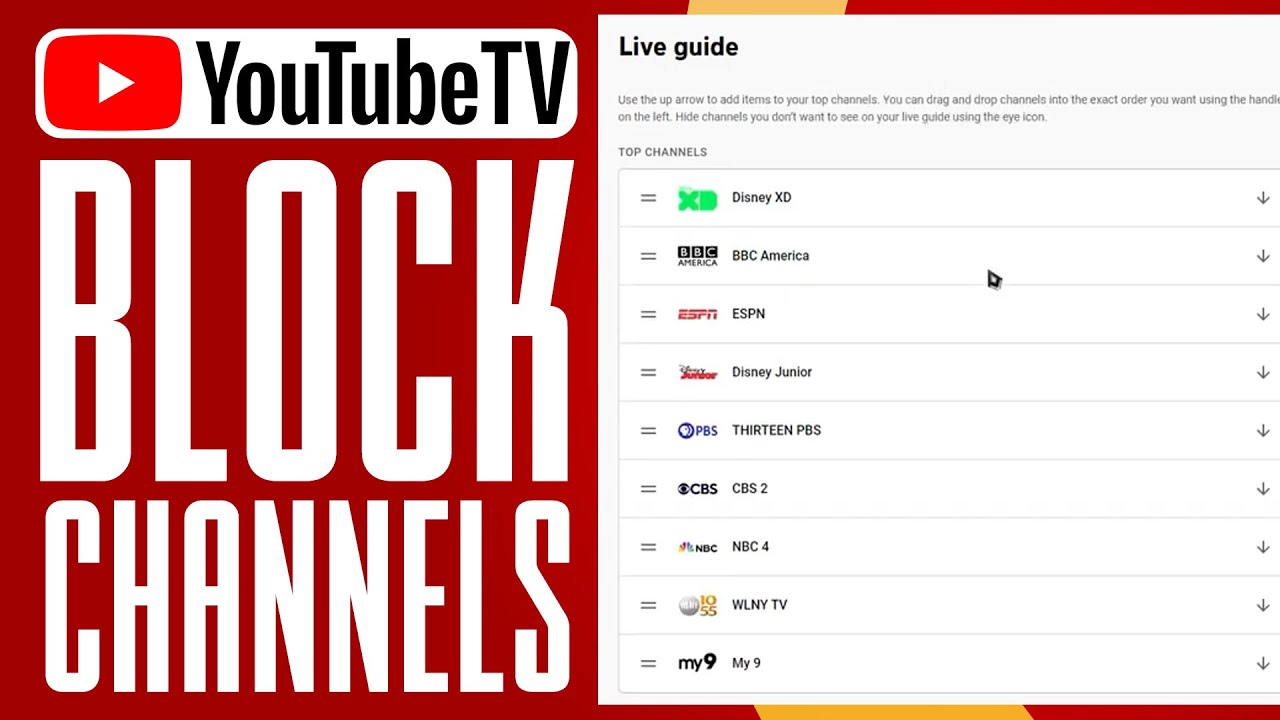


How To Block YouTube TV Channels 2025 Full Guide YouTube . How To Block YouTube Channels A Very Quick Easy Free Way To Block . How To Block YouTube Channels On Phone YouTube . How To Block A YouTube Channel Ultimate 5 Step Guide How To Block A YouTube Channel On Mobile . How To Block Youtube Channels 2024 How To Block Channels On Youtube



How To BLOCK YouTube CHANNELS 2024 YouTube . How To Block YouTube Channels YouTube . Top YouTube Gaming Channels February 2026 Nintendo ESL And . How To Start A YouTube Gaming Channel In 2026 YouTube . Top YouTube Gaming Channels March 2026 BGMI Dominates YTGM26oh



How To Block YouTube Channels Detailed Guide How To Block YouTube Channels . How To Block YouTube Channels An Easy Guide MSpy YouTube . Top 8 Most Blocked YouTube Channels In 2026 Parents Guide Most Blocked Youtube Channels . How To Block Youtube Channel 2025 Quick Easy YouTube . How To Block YouTube Channels YouTube